Advanced section
The Advanced section is visible after opening the form field configuration and contains options related to styling, QR code scanning, access authorization, OCR verification, using an SDK add-on, and personal data storage (GDPR).
Fields of the Advanced section
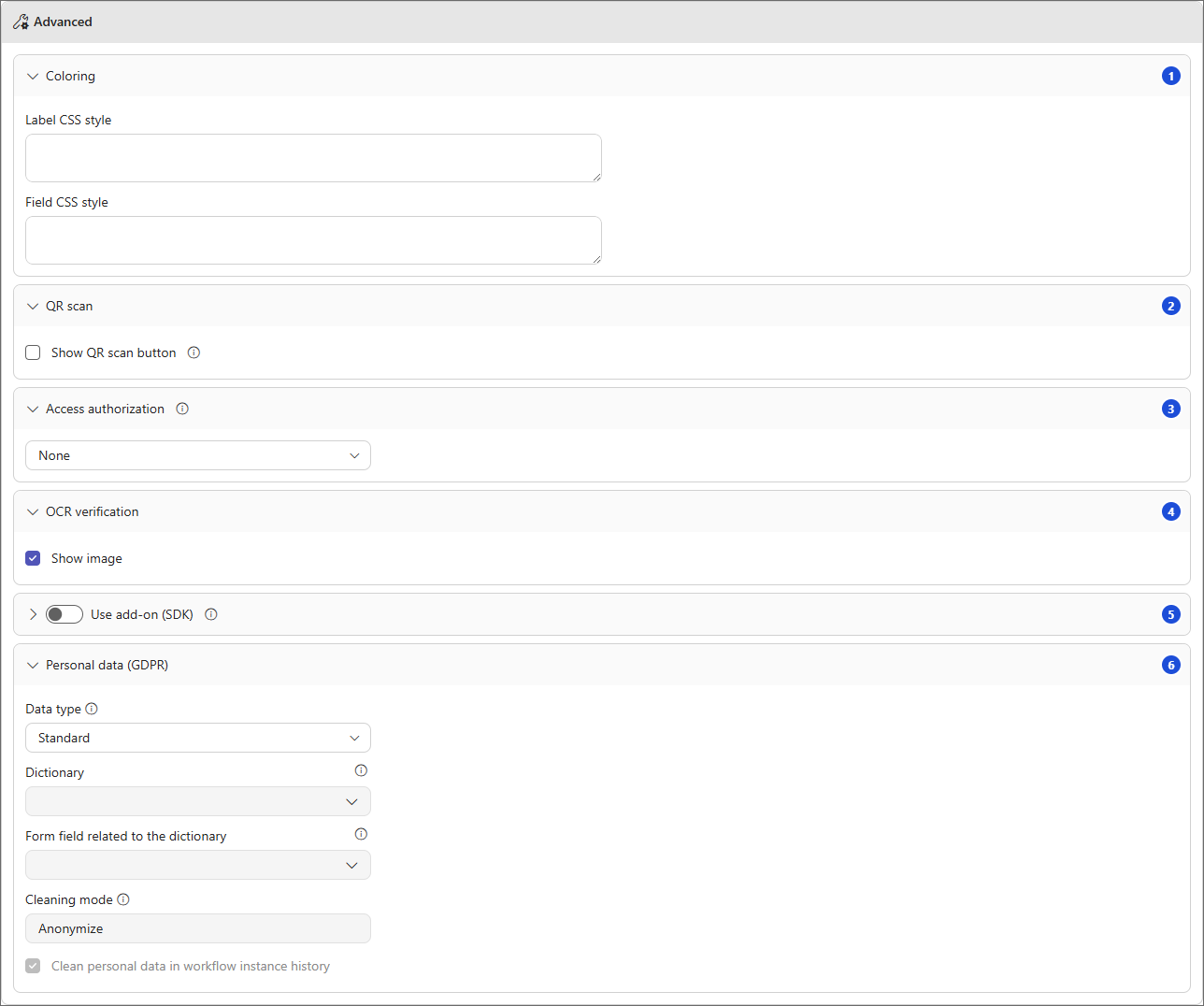
1. Coloring
- Label CSS style – edits, using CSS, the appearance of the field's name displayed on the form.
- Field CSS style – edits, using CSS, the appearance of the field control (its value) displayed on the form.
To learn more about editing form fields appearance, read the ARTICLE available in the WEBCON Community website.
2. QR scan
- Show QR scan button – selecting this option provides a button for scanning QR codes in the form field control on the form. The visibility of the button can also be set independently via the SHOW QR and HIDE QR form rules.
3. Access authorization
The parameter determines whether access to form fields will require additional authorization (confirmation of identity). This option can be set on fields, groups, and tabs.
| Option | Description |
|---|---|
| None | No authorization is required. The default option. |
| Periodically required | One authorization is required for the entire authorization session. The length of the authorization session is set globally for the environment, by default 5 minutes. During the authorization session, the user may view any number of form fields with authorization set to this mode. |
| Always require | Every access to a form field requires authorization. In this mode, the authorization session is tied to the specific instance presented to the user at the time of authorization and to specific fields. |

Enabling access authorization directly affects 3 options in the Conditions section, overriding their settings:
- Index in SOLR regardless of visibility rules – treated as disabled,
- Always show in instance history – treated as disabled,
- Never show in e-mail notifications – treated as enabled.
To learn more about access authorization on the form and table reports, please see the following ARTICLE available on the WEBCON Community website.
4. OCR verification
- Show image – if this checkbox is selected, an image of the scanned fragment is displayed below the corresponding field on the form.
5. Use add-on (SDK)
Lets you change the appearance and behavior of the standard field control using an SDK add-on prepared by developers. The option is turned on with the switch in the subsection header – once it is on, select the add-on that should handle the field control in the SDK add-on field. The list shows the add-on packages installed in the environment. The field is required – until an add-on is selected, the Field is required message is displayed.
To learn more about add-ons of this type, see the description of form field extensions (SDK).
6. Personal data (GDPR)
- Data type – the drop-down list specifies whether the form field contains personal or sensitive data (according to GDPR). Marking the form field as containing personal or sensitive data affects the scope of the action that removes personal data, which modifies (anonymizes) the values of form fields marked this way only. Available options:
- Standard – the form field does not contain personal data. It is ignored by actions that remove personal data.
- Personal data – the form field contains personal data. It is included by actions that remove personal data.
- Sensitive personal data – the form field contains sensitive personal data. It is included by actions that remove personal data. From the perspective of these actions, sensitive data are treated the same as personal data – the distinction exists to stay consistent with GDPR and keep the configuration transparent.
- Dictionary – the personal data dictionary to which the dictionary instance ID refers. A personal data dictionary can be a correctly configured process or a data source. The relation between a dictionary instance and the form field lets the system trace which dictionary instance the form field obtained its value from. Thanks to this, actions that delete or anonymize personal data can locate all places that use data from a specific dictionary instance.
- Form field related to the dictionary – specifies a different form field in the process that holds the ID of the dictionary instance the personal data come from. This creates a relation between the dictionary, the dictionary instance (its ID), and the form field value.
- If the form field loads data directly from the personal data dictionary, this option is unavailable – the form field keeps the ID of the dictionary instance it obtained data from.
- If the form field does not load data directly from the dictionary (e.g. its value was set automatically after selecting an option in a choice field), you need to specify a different form field in the process that holds the dictionary instance ID.
- None – this value can stay selected only if the process has been configured as a personal data dictionary.
- Cleaning mode – the drop-down list defines how the action that removes personal data modifies the form field value. Cleaning actions run for a selected dictionary instance and modify all form fields that obtained values from it. The field is inactive while None is selected in the Dictionary field. Available options:
- Anonymize – the form field value is changed so that it is unrecognizable.
- Delete workflow instance – the workflow instance containing personal data is deleted completely from the operational database, regardless of the cleaning mode set for other form fields that contain personal data.
- Do not change – the form field value stays unchanged and remains accessible.
- Clean personal data in workflow instance history – if selected, the configured cleaning mode is also applied to the historical values of the form field.
When Personal data or Sensitive personal data is selected, the way the action that removes personal data modifies the form field value depends on the Cleaning mode setting of this form field or process.