Calculated text value
The Calculated text value column displays the first value returned by the selected data source column for a given item – the column's value is not saved in the database.
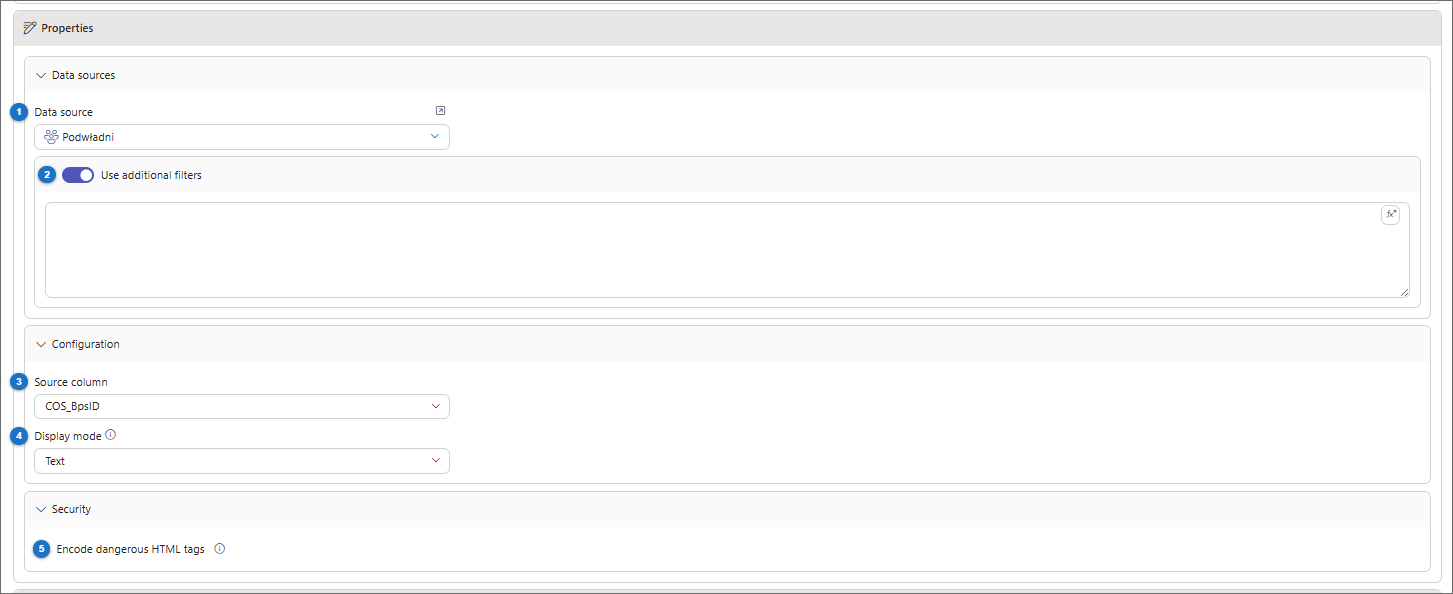
1. Data source
The field lets you select the data source the value shown in the column is retrieved from.
2. Use additional filters
Turning on the switch lets you select a business rule that additionally filters the data retrieved from the data source.
3. Source column
The list lets you select the column of the chosen data source that the value shown in the column is retrieved from.
4. Display mode
Lets you choose how the returned value is presented.
| Option | Description |
|---|---|
| Text | The value is presented as plain text. |
| Percent | The value is presented as a progress bar together with a percentage value – use this option only for numeric values between 0 and 100. |
| Indicator | The numeric value is replaced by a colored icon – a value less than or equal to 0 is a red indicator, a value equal to 1 is a yellow indicator, and a value greater than 1 is a green indicator. |
| Bold | The value is presented in bold text. |
Example of a column in Indicator mode:

5. Encode dangerous HTML tags
Selecting the checkbox encodes all HTML tags placed as a value in the control that could run JavaScript code (e.g. an onclick attribute) – the purpose of this option is to eliminate the security risk of intentionally or unintentionally running such code.
More information about using calculated columns is available in the article Using calculated columns available on the technical blog.