Steps
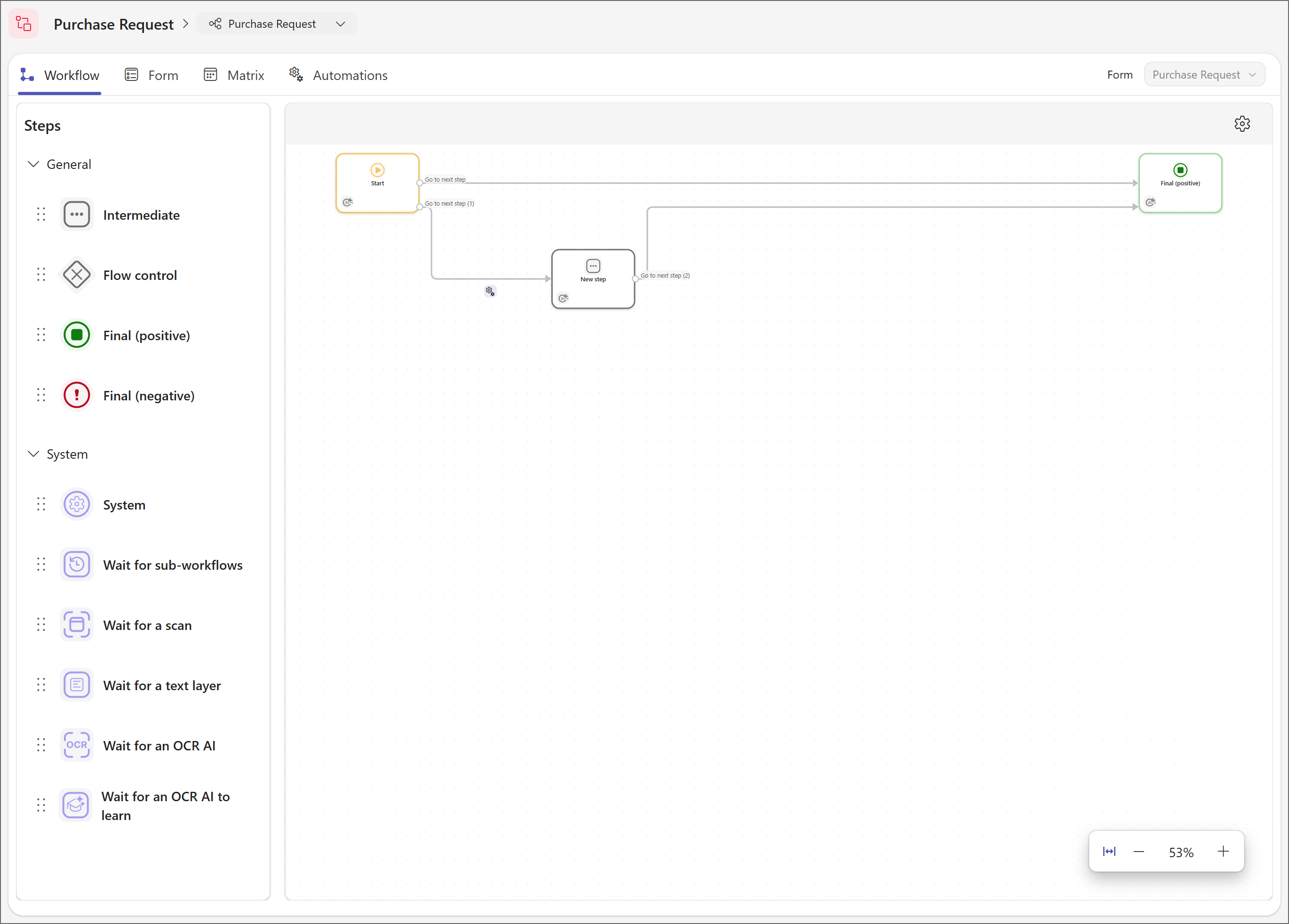
Steps are the stages of a workflow at which an item belonging to it stops, allowing a user or the system to perform a specific operation. Their purpose is to divide a business process into logical parts – a step most often represents a task that must be completed by a user or a group before the item can move on.
Role and configuration of steps
Each step determines which tasks are currently assigned to the item, who can complete them, and how the form looks at that particular point in the process. Steps are connected to each other by transition paths. It is choosing a path (i.e. clicking a button on the form) that moves the item to the next step of the workflow.
Steps are shown and configured in the Workflow Designer, on the Workflow tab. On the left side of the tab window there is a Steps panel, from which the available step types can be dragged onto the graphical diagram using drag and drop. Clicking an existing step on the diagram opens the Step configuration panel with its settings.
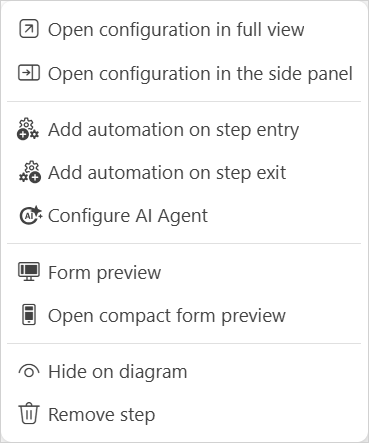
Step tile context menu
Right-clicking a step tile on the graphical diagram opens a context menu with the commands available for that step. The set of commands depends on the step type – for example, Remove step is not available for the start step, and the form preview commands are not available for the flow control step and system steps.
| Command | Description |
|---|---|
| Open configuration in full view | Opens the step configuration in the Designer Studio work area. |
| Open configuration in the side panel | Opens the Step configuration panel – the same action as left-clicking the step. |
| Add automation on step entry | Adds an automation run when an item enters the step. If such an automation has already been defined, the menu shows the Edit automation on step entry command instead. |
| Add automation on step exit | Adds an automation run when an item exits the step. If such an automation has already been defined, the menu shows the Edit automation on step exit command instead. |
| Configure AI Agent | Opens the configuration of the AI Agent associated with the step or, if no agent has been defined yet, creates one. The command is shown only when the AI Agents functionality is available. |
| Form preview | Opens a preview of the item's form in this step, in the standard layout. Not available for the flow control step and system steps. |
| Open compact form preview | Opens a preview of the item's form in this step, in the compact layout. Not available for the flow control step and system steps. |
| Hide on diagram | A shortcut for the Step visible on diagram option on the Basic tab – hides the step on the workflow's graphical diagram. For a hidden step, the menu shows the Show on diagram command instead. |
| Remove step | Removes the step from the workflow. Not available for the start step. |