Data row
The Data row attribute displays values from a data source – the values from individual rows and columns are displayed below one another. It is also possible to display values as a percent bar, an indicator "diode", or in bold text.
Properties
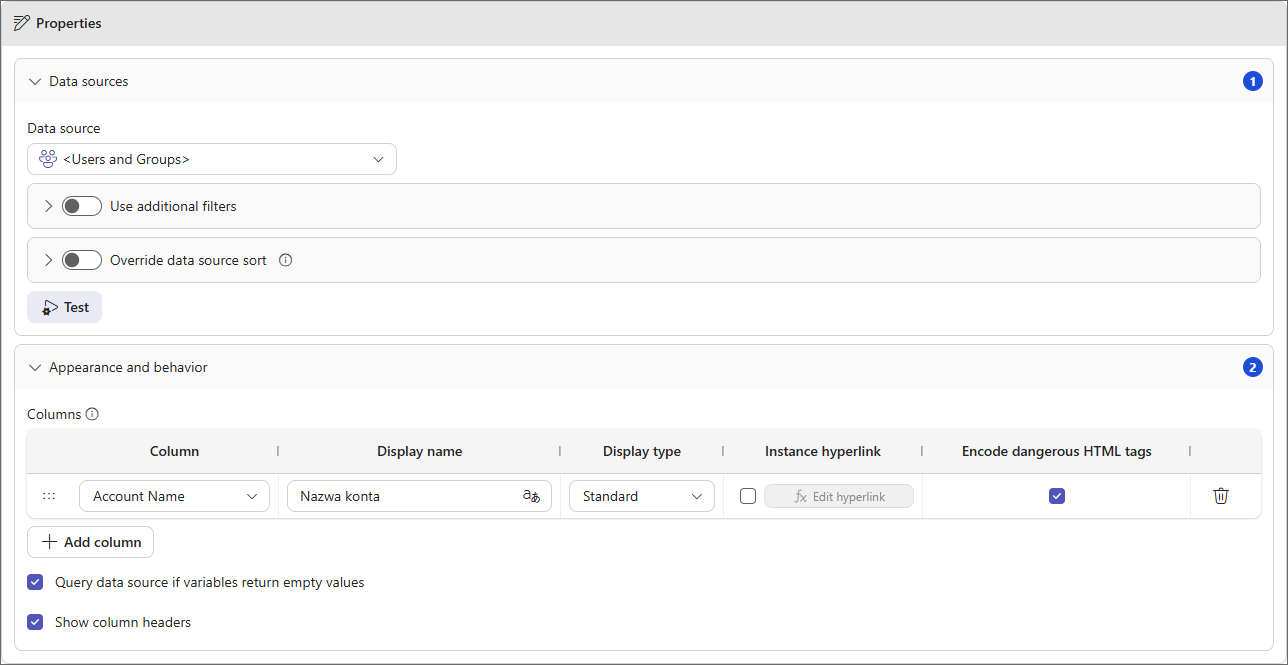
1. Data sources
- Data source – lets you specify the source of the values displayed by the attribute.
- Use additional filters – a switch that lets you narrow the results returned from the data source.
- Override data source sort – a switch that lets you replace the sorting configured in the data source; consecutive sort levels (Column name, Sort type) are added with the Add button. See the Person or group form field for details.
- Test – opens the Test window, where you can check the results returned by the data source with the current configuration.
The Use additional filters, Override data source sort, and Test options are available once a data source is selected.
2. Appearance and behavior
- Columns – a table that lets you configure how values from the data source are displayed. Each row contains the following options:
- Column – the name of a column returned from the data source,
- Display name – the name displayed on the form,
- Display type – lets you choose how the value is presented: Standard, Bold (the value is shown in bold text), Indicator (the numeric value is shown as a "diode" icon – red for values less than or equal to 0, yellow for a value of 1, green for values greater than 1), or Percent (the value is shown as a progress bar along with a percentage – for this to work correctly, use it only for columns returning numeric values between 0 and 100),
- Instance hyperlink – checking this option activates an Edit hyperlink icon in that row – the configuration available after clicking it is not yet available,
- Encode dangerous HTML tags – lets you specify whether dangerous HTML tags (ones that allow running JavaScript code) are removed or permitted.
- Query data source if variables return empty values – checking this option allows the system to use variables that return an empty value. If unchecked and a tag used in the query returns an empty value, the records in the attribute will not be displayed on the editable form.
- Show column headers – checking this option makes the column names visible on the form.