Choice tree
The Choice tree attribute lets you display values in the form of a tree and select one of them. There are two ways of configuring the data source used to build the tree – using a ParentID column or using paths – detected automatically based on the presence of a column named ParentID.
info
For more information on this attribute's configuration, read the Picker fields on the modern form and Choice tree – form field presenting the Active Directory structure articles available on the WEBCON Community website.
Properties
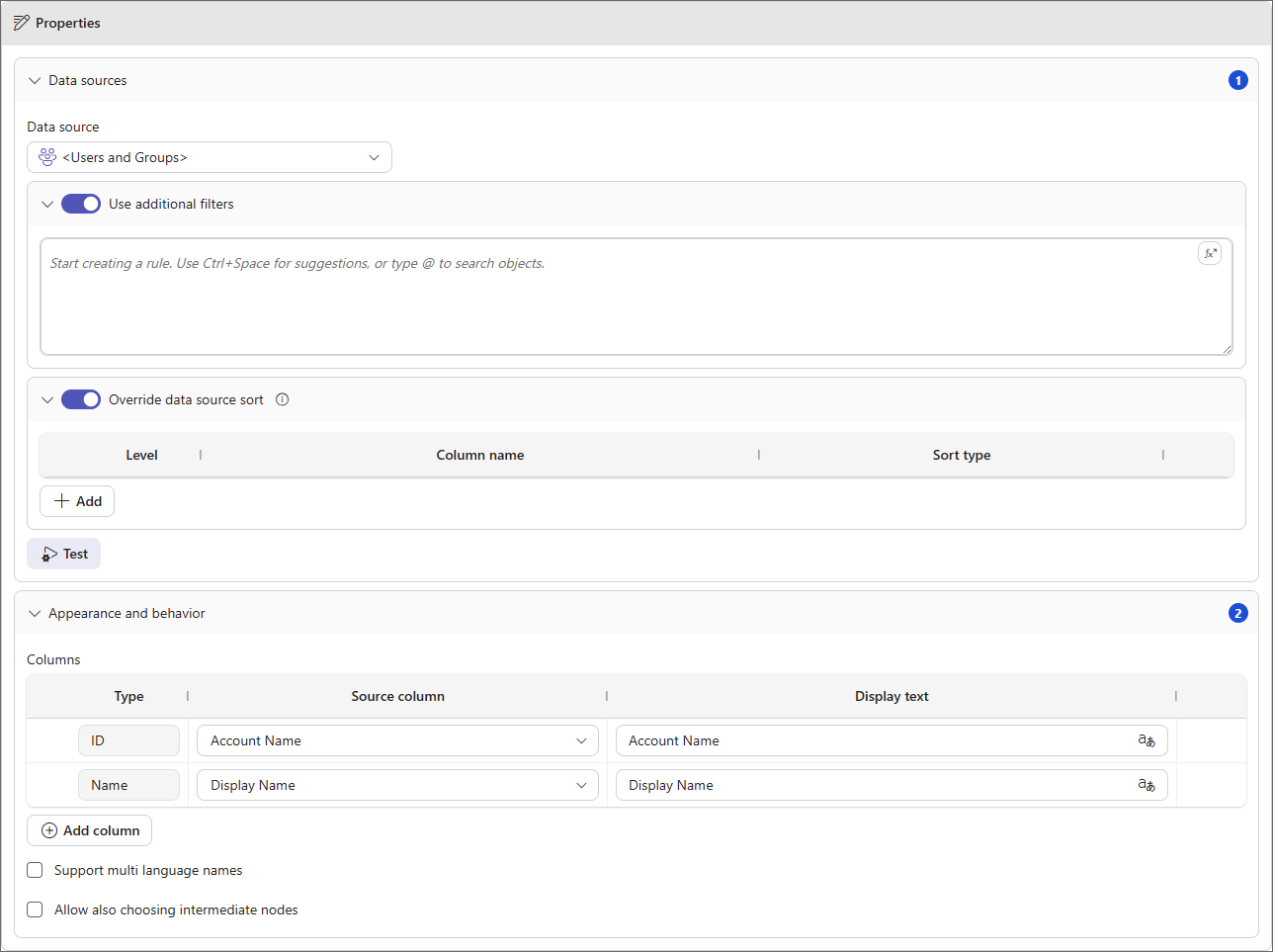
1. Data sources
- Data source – lets you specify the source of the values displayed in the tree. In ParentID configuration, the data source should contain an identifier column, a display-name column, and a ParentID column – the values in that column are paired with identifier values, so a record is placed one level below in the tree hierarchy as the "child" of the record with the matching identifier; an empty ParentID value places the record at the top of the hierarchy. In paths configuration, the display-name column must return a correctly formatted value in the form "<level 1 name>/<level 2 name>/<level 3 name>/" and so on, and the ParentID column must not be configured.
- Use additional filters – a switch that reveals a field where you can define a rule that further narrows the values returned by the data source. Press Ctrl+Space for suggestions, or type @ to search for objects.
- Override data source sort – a switch that lets you replace the sorting configured in the data source. Add consecutive sort levels to the table with the Add button, specifying the Column name and Sort type for each. For a detailed description of the option, see the Person or group form field.
- Test – opens the Test window, where you can check the results returned by the data source with the current configuration.
The Use additional filters, Override data source sort, and Test options are available once a data source is selected.
2. Appearance and behavior
- Columns – a list of columns used by the attribute. The Type column shows the role of each row: the ID row corresponds to the column whose value is stored as the identifier of the selected value – the source column should contain unique values. The Name row represents the column whose value will be displayed in the field after selecting a value. In the Display text column, you can rename the column and add its translations. Add further columns with the Add column button.
- Support multi language names – enables translations based on the language set in the user's Portal profile.
- Allow also choosing intermediate nodes – checking this option lets the user select an intermediate (not only a leaf) node of the tree.
Examples
Tree value picker window
