Permissions
The Permissions tab lets you grant users and groups permissions to configure and use the application. To open it, click Permissions under the Application settings node in the application tree on the left, or select the Permissions tab in the working area of the application view.
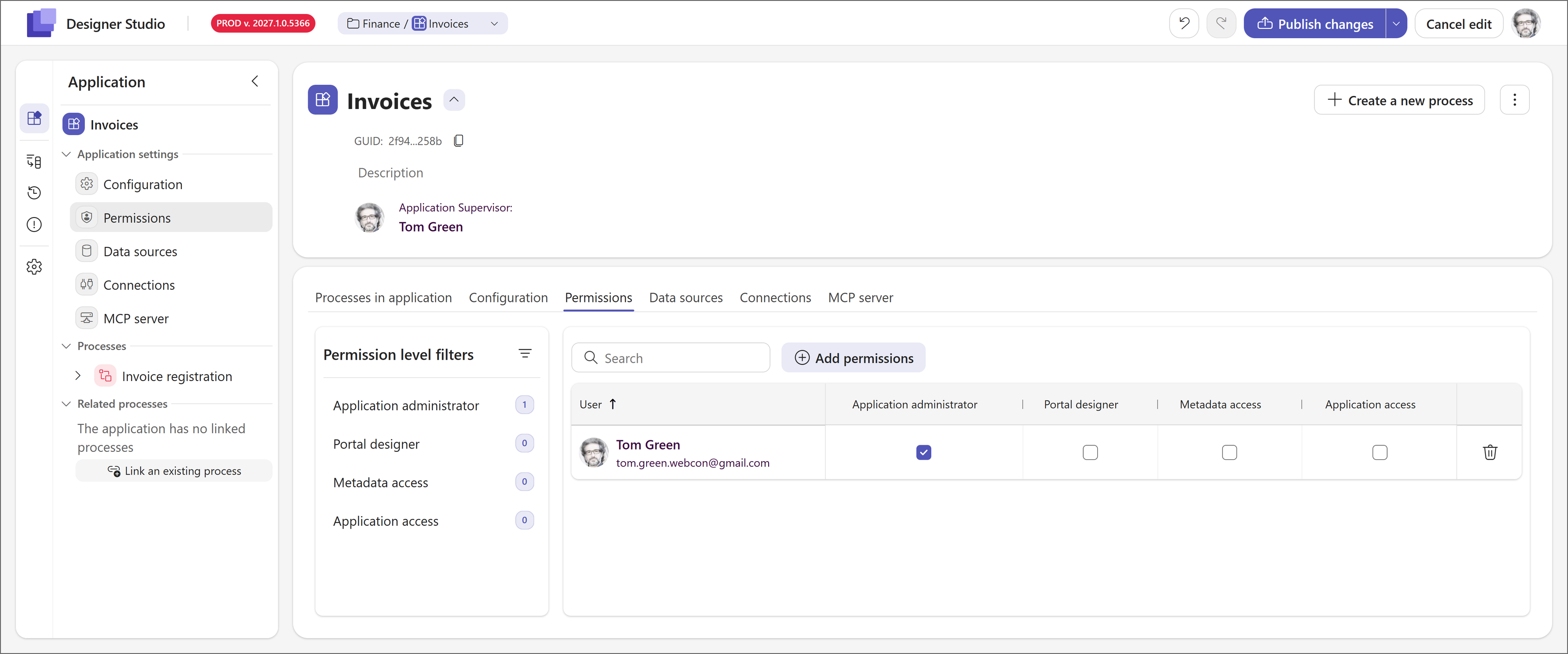
Areas of the tab
The three main areas of the Permissions tab are numbered in the screenshot below:
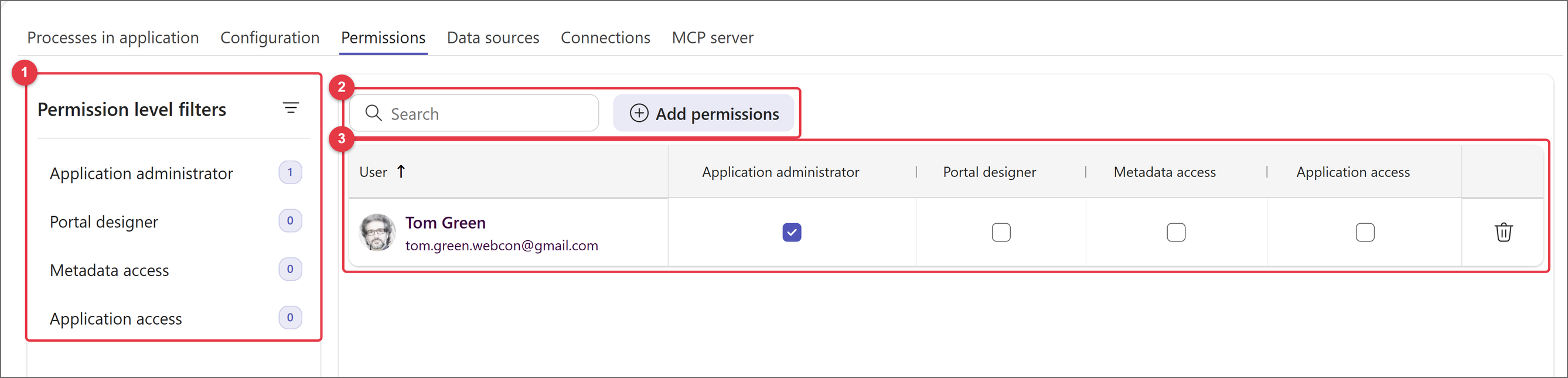
- Permission level filters – a panel showing the four available
permission levels together with the number of users/groups each one is
already assigned to. Clicking a level narrows the permissions table down to the users and groups
that hold it. You can select several levels at once – the table then shows the users and groups
that hold any of them. Active filters are highlighted in the list, and the Filter icon
 next to the
panel heading changes its appearance. Clicking this icon clears all selected filters.
- Search and Add permissions – the Search field lets you look up a user or group by name and check whether they already hold any permission for the application. If no row of the table matches the search criteria, the table shows the No results message with the Try changing the phrase hint. If no row matches the filter criteria, the table shows the No data available message. The Add permissions button on the right lets you grant permissions to further users or groups.
- Permissions table – a list of every user and group holding any permission for the application. Rows are users/groups (display name and login or e-mail address), and columns are the individual permission levels, shown as checkboxes. Selecting or clearing a checkbox directly in the table grants or revokes the given permission level. By default, the table is sorted in ascending order by the User column. Clicking a column header sorts the table by that column in ascending order, and clicking it again sorts it in descending order. An arrow next to the header shows which column the table is sorted by. You can adjust column widths by dragging the separator in the table header. To revoke every permission from a given user or group, click the trash-can icon (Delete from list) shown on the right side of their row.
Adding permissions
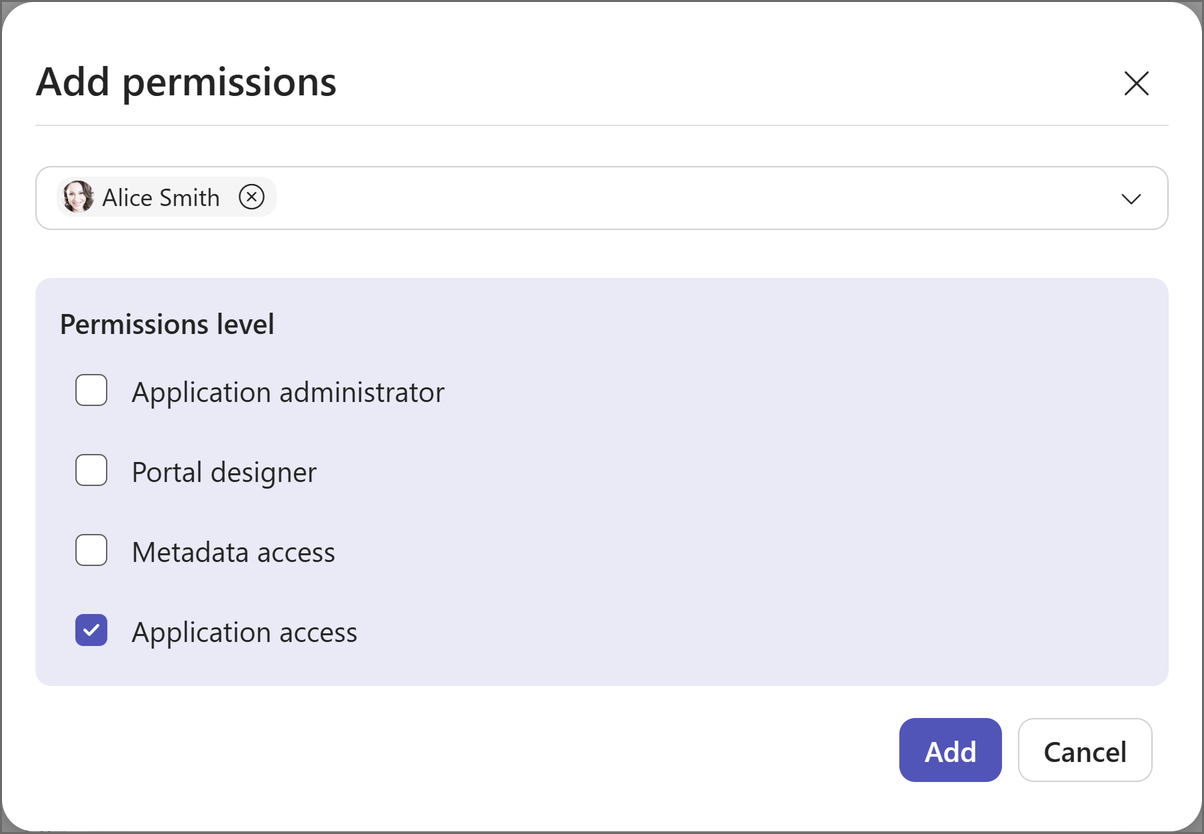
To grant permissions to another user or group:
- Click Add permissions (next to the Search field).
- In the Enter name field, search for and select one or more users or groups. The list of suggestions shows the display name and login or e-mail address of each entry. Selected entries appear in the field as chips that can be removed with the x icon – this lets you grant the same permissions to several recipients at once.
- Select at least one permission level in the Permissions level section. Levels can be selected either before or after choosing the recipients.
- Click Add to confirm, or Cancel (or the x icon in the top-right corner) to close the window without saving changes. The Add button stays inactive until recipients and at least one permission level have been selected.
Permission levels
On the Permissions tab you can grant four permission levels for the application. They correspond to the columns of the permissions table, the entries in the Permission level filters panel, and the Permissions level section of the Add permissions window:
- Application administrator – grants full access to the application's configuration.
- Portal designer – grants access to configuring the application's appearance and content in the WEBCON Portal (e.g. dashboards, reports, and Start buttons).
- Metadata access – allows reading the application's metadata, i.e. information about its structure and configuration, without access to the data held in the processes themselves.
- Application access – the basic permission required to use the application and its resources in the WEBCON Portal at all.
These levels apply only to the application as a whole – the full list of every permission available on the WEBCON platform, including global permissions and those assigned at the process or workflow level, is shown in the table below:
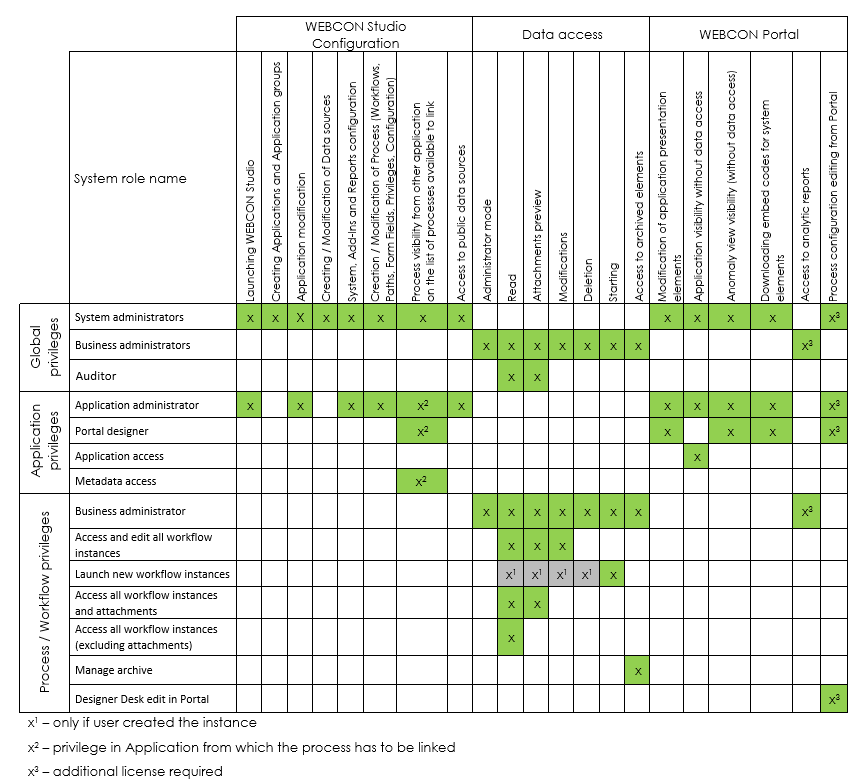
Additional information on global, application, Portal, and process privileges can be found in the article Uprawnienia w WEBCON Designer Studio (in Polish) available on the technical blog.