Version: 2025 R1

Actions

Actions are operations of the system performed without the user's involvement, provided that predefined conditions are met (going through a path, timer, adding an attachment, changing value on a form, etc.).

To add an action on a path or step, select a workflow from the tree and double-click on its step or path in the Workflow designer tab. In the Actions list field, select an action trigger method (see Action triggers) and click the plus icon. This will add an Automation, which may include one or more actions. In the new window, in the Definition tab, click on the arrow between the Start and End elements. A black icon with a plus will then appear, and when clicked, you will be able to add an action from the list of available actions. Another block with the name of the selected action will then appear between the above elements.
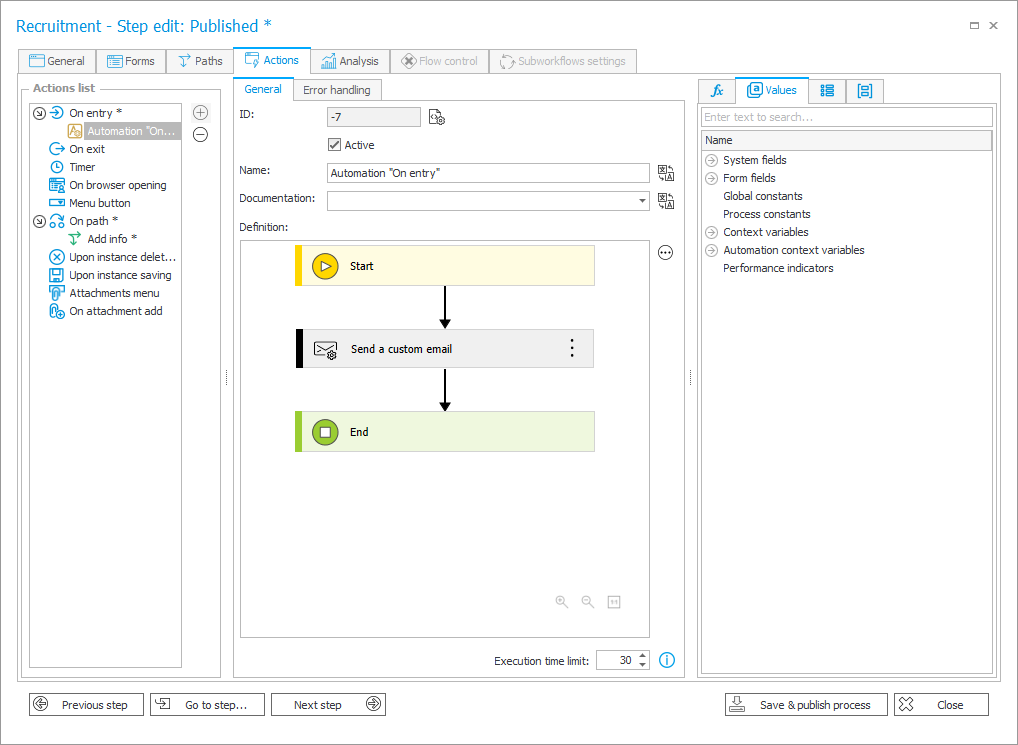
New action

To be able to change the action settings, click on the ellipsis icon available in the upper right corner of the action block and select Properties or Configuration. The displayed configuration windows will differ depending on the selected action type.

info

For more information on actions and their configuration, see the article Introduction to actions in WEBCON BPS on our technical blog.

Action groups and types​

In WEBCON Business Process Suite actions are grouped by the nature of their operation. The table below presents a list of all action groups available in WEBCON BPS and specifies by which activity or workflow an action can be triggered.

Action groupAction type
On entry
On exit
Timer
On browser opening
Menu button
Menu button (View mode)
On path
Cyclical
Upon instance deleting
Upon instance saving
Attachments menu
On attachment add
OCR and scanningAdd a text layer✓✓✓✓✓✓✓✓
OCR AI recognition✓✓✓✓✓✓✓
Teach OCR AI✓✓✓✓✓✓✓
NotificationsSend standard email✓✓✓✓
Send custom email✓✓✓✓✓✓✓✓
Send a PUSH notification✓✓✓✓✓✓✓✓
FormChange value of single field✓✓✓✓✓✓✓✓
Hyperlink✓✓✓✓✓*✓✓
Validate form✓✓✓✓✓✓
Change values of multiple fields✓✓✓✓✓✓✓✓
Update item list values✓✓✓✓✓✓
Clear item list✓✓✓✓✓✓✓
Replace item list✓✓✓✓✓✓✓
Remove an item list row✓✓✓✓✓✓✓
Add item list row✓✓✓✓✓✓
Task assignmentCreate a task✓✓✓✓
Choose an approver✓✓✓✓✓✓✓
Privileges and public accessAdd privileges✓✓✓✓✓✓✓
Remove privileges✓✓✓✓✓✓✓
Share workflow instance✓✓✓✓✓✓✓
Share task✓✓✓✓
Stop sharing✓✓✓✓✓✓✓
Workflow controlStart a subworkflow✓✓✓✓✓✓✓✓✓
Update related workflow instance✓✓✓✓✓✓✓✓
Set workflow status✓✓✓✓✓✓
Start a subworkflow (SQL)✓✓✓✓✓✓✓✓
Move workflow (SQL)✓✓✓✓✓✓✓
Change form type✓
SubstitutionsAdd a substitution✓✓✓✓✓✓✓
Remove a substitution✓✓✓✓✓✓✓
Reports and printoutsGenerate an HTML printout✓✓✓✓✓
Generate an RS report✓✓✓✓✓✓✓
Digital signatures and certificatesSign an attachment✓✓✓✓✓✓✓✓
Verify attachment's signature✓✓✓✓✓
BarcodesPrint a barcode label✓✓✓✓✓✓
Read a barcode✓✓✓✓✓✓✓
Add a barcode✓✓✓✓✓✓✓
ExchangeExchange events✓✓✓✓✓✓✓✓
Exchange tasks✓✓✓✓✓✓✓✓
Out of office autoreply✓✓✓✓✓✓✓
BPS users and groupsBPS users list synchronization✓✓✓✓✓✓✓
Delete BPS user✓✓✓✓✓✓✓✓✓
Delete BPS group✓✓✓✓✓✓✓✓✓
Create BPS group✓✓✓✓✓✓✓✓✓
Add/Remove single user to/from BPS groups✓✓✓✓✓✓✓✓✓
Add/Remove multiple users to/from BPS group✓✓✓✓✓✓✓✓✓
Create BPS user✓✓✓✓✓✓✓✓✓
Edit BPS user✓✓✓✓✓✓✓✓✓
Manage BPS user licenses✓✓✓✓✓✓✓✓✓
Add BPS groups owners✓✓✓✓✓✓✓✓✓
Remove BPS groups owners✓✓✓✓✓✓✓✓✓
Active DirectoryManage users✓✓✓✓✓✓✓
Manage groups✓✓✓✓✓✓✓
Add user to a group✓✓✓✓✓✓✓
SharePoint contentCreate a site✓✓✓✓✓✓✓
Download an attachment from a list✓✓✓✓✓✓✓✓
Create a list✓✓✓✓✓✓✓✓
Delete a list✓✓✓✓✓✓✓✓
Add a new list element✓✓✓✓✓✓✓✓
Edit a list element✓✓✓✓✓✓✓✓
Delete a list element✓✓✓✓✓✓✓✓
Add an attachment to a list✓✓✓✓✓✓✓✓
SharePoint users and privilegesCreate a group✓✓✓✓✓✓✓

SharePoint group members management

✓✓✓✓✓✓✓
Add SP privileges✓✓✓✓✓✓✓
IntegrationRun an SQL procedure✓✓✓✓✓✓✓✓✓
Run an SDK action✓✓✓✓✓✓✓✓✓
Invoke SOAP Web service✓✓✓✓✓✓
Run a PowerShell script✓✓✓✓✓✓✓✓
Invoke REST Web service✓✓✓✓✓✓✓
AttachmentsAdd attachment✓✓✓✓✓✓✓
Update attachment✓✓✓✓✓✓✓
Remove attachment✓✓✓✓✓✓✓
Generate/Update a Word file✓✓✓✓✓✓**✓✓✓
Generate a PDF file✓✓✓✓✓✓**✓✓
Convert Word to PDF✓✓✓✓✓✓✓✓
Read data from an Excel file✓✓✓✓✓✓
Generate an Excel file✓✓✓✓✓✓✓
Generate a text file✓✓✓✓✓✓✓
Merge attachments into a Word/PDF file✓✓✓✓✓✓✓
Add attachment to another workflow instance✓✓✓✓✓✓✓✓
Database retentionArchive workflow instances✓✓✓✓✓✓✓
Archived instances retention✓✓✓✓✓✓
Remove personal data✓✓✓✓✓✓✓✓
OneDriveStart editing a file using OneDrive✓✓✓✓✓✓✓✓✓✓
Cancel editing a file using OneDrive✓✓✓✓✓✓✓✓✓
Finish editing a file using OneDrive✓✓✓✓✓✓✓✓✓
Update privileges for a OneDrive file✓✓✓✓✓✓✓✓✓
Performance indicatorsStart performance indicator✓✓✓✓✓✓✓✓
Stop performance indicator✓✓✓✓✓✓✓✓
Cancel performance indicator✓✓✓✓✓✓✓✓

* – (1) the action is available in View mode if the Automatic save option is not checked in the configuration; (2) the action is available in View mode if it has been embedded directly in an automation triggered by the menu button (it has not been embedded in a global automation inserted in an automation triggered by the button).
** – the action is available in View mode if the Save as an attachment option is not checked in the configuration.