AI Agent
The tab allows you to add a digital intelligent worker, called an AI Agent. Its job is to execute instructions described in natural language at the step to which it has been assigned. The AI Agent can be added to a start, intermediate, system, or finish step. For each instance entering this step, a new job will be added to the job queue. The job queue is available in Basic reports > AI Agent Jobs.
AI Agents support the following operations:
- modifying form field values (including Item list),
- saving workflow instances,
- transitioning workflow paths,
- reading attachments,
- using knowledge from the internet (Grounding).
The AI Agent does not have access to the following fields: Report, Data table, Data row, Custom control (SDK), Absence chart, Absence summary, Gantt chart, Chart, Tab panel (name), Picture, Handwritten signature, HTML, OAuth2 Authentication, Widget, and Hyperlink.
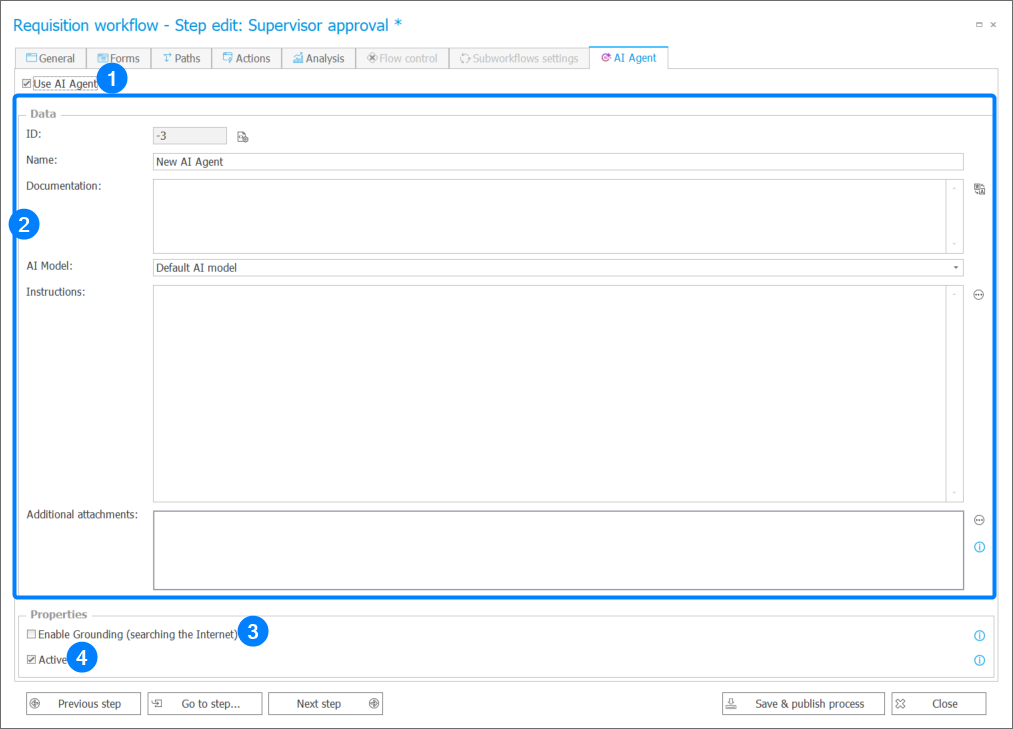
1. Use AI Agent
Selecting this option will add the AI Agent to the step.
2. Data
In this section, you need to define the AI Agent’s name and provide instructions in natural language.
AI Model
The AI Model field allows you to select the AI model used by the AI Agent.
For information about the LLM model selection list, see AI model selection list in the AI configuration node.
Instructions
The Instructions field allows you to enter natural language instructions that the AI Agent will execute for each instance entering the step. The instructions can use available rule-building elements - Functions (process and global Business rules), Values, and Objects - which makes the instruction specific to the context of each processed instance.
The AI Agent understands the context of the form and the process it is part of. It uses process metadata, attachments, and form field values. Based on this information, the AI Agent makes autonomous decisions according to the instructions and automatically performs various actions.
Attachments
The AI Agent's system instructions contain the IDs, names, descriptions and categories of attachments associated with the processed instance. File content is loaded only when the instructions indicate this and the AI Agent decides which files to load.
The AI Agent supports the following file formats: PDF, DOCX, DOC, RTF, TXT, XML, BPMN2.0, MSG, HTML, CSV, MD, WEBP, JPG, PNG, BMP, TIFF, SVG.
The Additional attachments field allows you to define a Business rule (for example, GET ATTACHMENTS) that returns identifiers (ATT_ID) of additional attachments to include in the AI Agent context. The rule can return more than one identifier; separate consecutive values with semicolons (ATT_ID;ATT_ID;...). If the rule returns identifiers of attachments already associated with the instance, they are not duplicated.
Choice fields
The Limit of values loaded into Choice fields specifies the maximum number of values passed in the context when setting Choice fields. The limit applies to the number of rows returned after the data source is filtered.
3. Enable Grounding (searching the Internet)
This option allows the language model to access up-to-date information from the internet to generate more accurate and current responses.
This feature applies to compatible models that support web search. For Gemini models, Google Search is used. For models available through Azure Foundry, if the model supports the Responses endpoint, Bing search is used. Within a single AI Agent job, internet search is triggered once if the model determines that it is needed to complete the instruction.
4. Active
If this option is selected, a job for the AI Agent will be created for each instance entering the current step and added to the queue.
If this option is not selected, instances entering the current step will not create jobs in the queue, and jobs already in the queue will not be executed.
5. Operating rules
AI Agents operate according to the following rules:
- Editing instances - The AI Agent modifies an instance only if it is not currently being edited by another user. When starting to process a job, the AI Agent performs a checkout on the instance. If the instance is being edited by someone else at that moment, the AI Agent postpones the job for later processing. If the instance is no longer in the step where the job was originally added to the queue, the AI Agent removes it from the queue.
- Instruction updates - Each time it runs, the AI Agent retrieves the most recent version of the instructions, as they may have changed since the job was added to the queue.
- Error handling - If an error occurs while saving or executing a path, the AI Agent logs the error but does not attempt to edit the instance again.
- Task removal - Deleting a step that has an AI Agent configured automatically removes all related jobs from the queue. Additionally, changing the step type to one that does not support AI Agents triggers the following message: Changing step type to (step type name). AI Agents are unavailable on that type of step and it will be removed. Do you want to continue?
- Form field settings - The AI Agent respects the restrictions defined in the Field matrix. It may leave a required field empty if it cannot determine the value for it.
6. AI Agent execution history
AI Agent executions are visible in the element History, in the same window as action and automation logs. The History presents the following information:
- that an AI Agent ran on the given element version,
- the result of the job – success or error,
- the job execution date.
If the AI Agent executed more than one job at a given step, all jobs are visible in the History.
Additionally, in the administrative mode the History contains:
- step-by-step reasoning of the AI Agent,
- the AI model used,
- the job execution log,
- the AI request time,
- the job cost in tokens.
The cost value depends on the AI Proxy mode:
- AI Proxy online – the cost is given in WEBCON tokens,
- AI Proxy self-hosted – the cost is given in tokens actually used by the model.
7. Internal tools
The AI Agent is built around internal tools, each designed for a specific job. Tools allow the AI Agent to interact with workflows and forms.
The tools cannot be modified from Designer Studio. However, understanding how they work helps to write better instructions for the AI Agent.
ToolChooser
Entry point for each AI Agent job. The tool analyzes the instructions and selects the tools needed to achieve the expected result. It also decides whether to add attachments to the context of each tool. Attachments are selected by their names, and their content is analyzed by the subsequent tools.
ToolChooser selects the tools by itself. To guide it towards a specific tool, use the Keywords associated with that tool in the instructions (listed below for each tool).
PathChooser
The tool determines which path the AI Agent uses to move the instance to the next step.
Keywords
- English:
Go to the next step,Continue to the next section,Proceed,Move forward,Advance to the next step - Polish:
Przejdź dalej,Przejdź do kolejnego kroku,Wybierz ścieżkę
FieldSetter
The tool assigns new form field values. It has variants for setting simple fields (text, date, numbers), setting Choice fields, and updating Item lists.
Keywords
- English:
Fill in the field,Enter the value,Complete this section,Type in - Polish:
Uzupełnij,Wpisz,Wypełnij
PickerSetter
The tool is invoked for each Choice field whose value can be set. It resolves values available in the data source according to the form field settings:
- only visible columns are included;
- the number of rows is limited according to the Limit of values loaded into Choice fields setting (larger data sources require filtering).
Before a value is set, the system checks if the value suggested by the AI Agent is present in the list of available values. If the value is not present, it is not set, even if the target field is required. For this reason, it is recommended to disable form field validation on paths used by the AI Agent.
SubElements (Item lists)
Three tools are used for working with Item lists: for adding, deleting, and modifying rows and cells.
When setting Choice field columns in Item lists, data source values are calculated for a default row (as if a user clicked Add).
Keywords
- English:
Add a new line,Add an item,Insert a row,Update the line,Change the item,Modify row 3 - Polish:
Dodaj nową pozycję,Dodaj wiersz,Zaktualizuj wiersz,Zmień pozycję
For additional guidance on implementing AI Agents, see the AI Implementation Guide.