AI Implementation Guide
Introduction
This guide is intended for professionals involved in designing and managing business processes within WEBCON.
The goal is to provide practical instructions and best practices for implementing AI functionalities (AI Agent, AI PROMPT, AI Concierge) into new or existing workflows. The guide also covers integration of external AI clients with WEBCON using MCP Servers.
General principles
- Start with requirements. Define the business problem and success criteria first, then decide whether AI is the right tool.
- Start simple, compose smaller parts into more complex solutions. Begin with one task per prompt, then scale by chaining prompts/agents and combining them with standard actions.
- AI is usually just part of the solution. Let AI make the non-deterministic decision; keep deterministic logic, data movement, and side effects in actions and business rules.
- Collaborate with end users. Involve subject-matter experts both in design and in validating generated content. LLM output needs review by people who know the domain.
- Learn how to write instructions. Treat prompt-writing as a skill: iterate in small steps and test on real examples - see Simple prompts.
Overview of AI Functionalities
AI Agent
An autonomous agent is assigned to execute a Job on a particular step of a workflow. For every element entering this step, a new Job will be added to Jobs Queue. Jobs are then processed by Webcon Workflow Service. The result will depend on given instructions. Usually it's filling form fields and selecting a path to a next step.
AI Agent can be added on any starting, intermediate, system or final step by clicking an AI icon in the bottom left corner of the step. If an AI Agent is already added, this icon will be coloured.

When executing a Job, AI Agent:
- respects all settings from the form field matrix. Only editable fields can be changed, only visible fields will be added to context.
- this includes technical fields.
- it is not guaranteed, that AI will provide values for all required fields (if not sure, it will leave the field empty). For that reason, it's best to leave fields as optional, or disable form fields validation on paths used by AI Agents. Error handling and retries are described in Operating rules.
- has access to metadata, such as process, workflow, step, task and form fields descriptions.
- can read attachments related to the given instructions (AI Agent will decide, which one to read based on instructions and files names).
AI PROMPT
Is a business rule, that sends a single prompt to LLM and returns its response. It can be used as any other business rule in the system. This gives it a lot of flexibility, but requires more configuration and setup to incorporate it with other actions and business rules to create sophisticated automations.
AI PROMPT takes two arguments:
- task (required) - text based instructions or a list of attachments.
- system instruction (optional)
and returns text.
See structured output to learn, how to deal with AI PROMPT responses.
AI Concierge
Is a personal assistant to a user. Based on instructions and attached files, AI Concierge can:
- fill the form,
- only editable fields can be modified
- it is not guaranteed, that AI will provide values for all required fields (if not sure, it will leave the field empty).
- suggest a transition path,
- suggest a menu action button,
- describe the form,
- suggest navigation to other places in the Portal (applications, dashboards, reports, start buttons)
AI Concierge doesn’t make permanent changes to the form. Instead, it suggests possible actions. It’s up to the user to review and confirm these actions. This ensures control stays with the user, while the AI Concierge provides guidance.
The more clearly a form is structured - with meaningful field names, helpful descriptions, and well-defined tasks details - the better AI Concierge can understand the context and assist the end user in completing the task.
Vague labels or jargon can confuse the AI Concierge and lead to unexpected results.
Most of this article is aimed towards AI Agent and AI PROMPT. AI Concierge just works out of the box, without any configuration.
Comparison
| Feature | AI Agent | AI PROMPT | AI Concierge | MCP Server |
|---|---|---|---|---|
| Type | Step | Business rule | Chat assistant | Integration with an external AI client |
| Configuration required | Yes | Yes | No | Yes (server enabled + API Definitions) |
| Triggered by | Entering a workflow step | Depends on configuration | User interaction | Tool call by the MCP client |
| Model AI | Configured in WEBCON (AI Proxy) | Configured in WEBCON (AI Proxy) | Configured in WEBCON (AI Proxy) | On the MCP client side |
| Execution mode | Asynchronous (job queue, WEBCON Workflow Service) | Synchronous | Interactive | Depends on the MCP client |
| Access to attachments | Yes (auto-selected) | Yes (as input parameters) | Yes (added to chat) | Yes |
| Ability to modify elements | Yes | No (returns text only) | No (suggestions only) | Yes (via API Definitions) |
| Response format | Structured | Text (format depends on instructions) | Structured / Suggestions | Structured (MCP tool JSON) |
MCP servers do not use AI Proxy - the language model runs on the MCP client side.
Selecting a functionality:
- AI Agent – when the task can run in the background, without the user, and its result is filling in the form or selecting a path.
- AI PROMPT – when the user needs an immediate response, or when other actions and business rules process the result.
- AI Concierge – when the user decides on the task and works with AI interactively.
All AI Functionalities support a limited number of file types: "txt", "pdf", "xml", "rtf", "csv", "html", "md", "jpg", "png", "webp", "docx", "doc", "bpmn", "msg", "tif", "bmp", "svg"
All three functionalities route requests to external AI providers through AI Proxy - the intermediary layer that handles provider selection, authentication, and model configuration.
Pilot Implementation
All AI functionalities can be implemented directly into existing processes, automating that, which was not previously possible. To minimize disruption and still be able to test new functions in production environment, it's beneficial to deploy AI within a controlled and limited scope.
AI PROMPT can be created as a menu action, invoked on demand by end users and immediately verifying the output. Once ready, these actions can be incorporated into existing automation.
Additional flow control step can redirect a subset of the workflow elements to AI Agent, and the rest to a usual flow.
Identifying Candidate Workflows
- Criteria for selection
- Repetitive tasks
- Decision points requiring non-deterministic decision making
- Prioritization factors
- High-volume processes
- Known bottlenecks
Measuring effectiveness
Before expanding AI scope beyond a pilot, use WEBCON's built-in reporting and analytics, such as Performance indicators and Analytics, to verify the AI step is performing well enough to justify wider adoption.
Example indicators to track:
- compare AI-handled tasks speed against the manual baseline.
- end-to-end latency the AI step contributes to the overall workflow.
- percentage of corrections / returns to previous step - how often AI generated content or decisions are rejected by users or require rework.
Use cases and examples
AI Agents
Pre-processing Tasks
- Information summarization
- Suggested inputs based on historical data
Example: Content review - AI Agent can review an article before it goes to final approval. During pilot phase, only selected content can be sent to be reviewed by AI and the rest of the process can remain unchanged.

Context-Based Flow Control
- Path selection based on non-deterministic inputs
Example: Mail classification - had to be manual task, now can be supported by an AI Agent

AI PROMPT
AI PROMPT can often be a good starting point to evaluate, if AI can make a difference in a given area.
Using the "Content Review" workflow as an example: In the first version, review can be generated by AI PROMPT instead of AI Agent, this allows it to be used as menu action, invoked on demand by the reviewer. Once a certain level of accuracy is reached, AI Agent can take over the task of reviewing content.
Prefer AI PROMPT over AI Agents, when end user needs to get immediate response from AI.
AI Concierge
Contrary to AI PROMPT and AI Agents, AI Concierge does not require any configuration. Thus use cases will most likely be discovered by end users, not imposed by the administrators. Make sure to gather feedback and share knowledge among users.
Example message templates for AI Concierge:
- Fill the form (if attachments are added to context, form will be filled based content)
- Set (field name). (tasks description - change tone - summarize - format to HTML (for multiple lines fields with rich editor) - translate to (language))
Use voice typing with native device capabilities (on Windows it's [Windows key] + H).
Instruction Design
Simple prompts
Try using simple prompts first. Run them on few examples to see the result. Based on that, create next versions of instructions by adding and testing small changes.
// AI Agent
Based on the attachment, choose the appropriate transition path.
// AI PROMPT, system instruction
Prepare content according to the given topic and specified style.

Use simple ROLE > TASK template
// AI Agent or AI PROMPT
# ROLE

You are a creative content creator specializing in marketing materials designed for use across various communication channels.
You are familiar with the latest trends in the low-code platform market, and the content you create relates to topics such as business process automation, low-code, RPA, etc.

# TASK

Prepare content according to the given topic and specified style.
For longer prompts, it is advisable to use alternative business rules to improve readability and maintainability. One example, using COLLECTION, was presented earlier. Another useful option is the TEXT rule, which supports multiline editing and facilitates working with more complex instructions.


More prompt templates can be found in various tutorials online and can be used just as well.
AI Agent instructions can be based on the schema GOAL > CONTEXT > FILL IN FORM > MOVE, which extends the ROLE > TASK template. Each element of the schema can be written in the instruction as a Markdown header (for example # GOAL):
- goal – the task for the AI Agent to do;
- context – text, attachments, business rules;
- fill in form – the command to fill in the form;
- move – the path selection to the next step.
In the first iteration of the instruction, it is not necessary to list the form fields in the instruction. AI Agent fills only the form fields that are visible and editable in the step, and for choice fields it knows the allowed values. When analysis of AI Agent results shows that it does not understand a field, add the missing information to the instruction or to the field description - see Use existing descriptions.
Context is the information that AI Agent uses to do the task. Context can contain:
- a description of the current procedure – the rules and facts that decisions must follow;
- examples of expected responses – synthetic examples (created for the instruction, but similar to real ones) or examples from history. Use only current and correct examples from history. Limit examples to the current context, for example invoices from the same supplier from the last few weeks or months.
Keep the procedure description and examples in a file - see Knowledge base in files. Then a change of this knowledge does not require a change of the step configuration.
Focus on one task
Instructions should be focused on one task. When an operation requires multiple steps, it is worth splitting it into several AI PROMPTs or AI Agents.
AI PROMPT can be chained by passing the result of one rule to another by form fields, local automation parameters or nesting them directly. This works well with structured outputs.
AI Agents can be chained by creating several subsequent workflow steps.
Two examples of such approach:
- gathering info about a company and generating summary of recent developments
- writing and reviewing content

Fixed mappings in business rules
A fixed mapping (A → B) belongs in a business rule, not in AI instructions, because a business rule is deterministic, fast, and easy to check. AI can find the value A, and the business rule calculates B. For example, AI Agent finds the complaint category, and a business rule assigns the responsible department. AI can also suggest B when no mapping exists, but this should be an exception. When B is known, add the mapping to the business rule.
Use existing descriptions
AI Agent and AI Concierge have access to more than just instructions given in their configuration. They also know about the descriptions of each form field and path as well as step description. Relying on descriptions is especially useful when introducing AI Agents into existing workflows.
Consider an example workflow, in which incoming mail is categorized by an AI Agent (workflow diagram is presented above). Simple instructions (like one mentioned before "Based on the attachment, choose the appropriate transition path.") may be enough, but providing clear classification hints will allow AI to make better decisions in less obvious cases.
One solution, is to put hints directly into AI Agent instructions.

Just as well, these hints can be added as path description.

The AI Agent also knows about step descriptions, so the final configuration may have some task described in step description and the instruction is simply to ask AI Agent to perform that task.

Dynamic content - objects identifiers, variables, business rules
In all prompts, it's possible to use any object identifiers, variable and business rules, this enhances a prompt from just static text to context specific instructions.
Prompts are always interpreted in a context of a particular workflow instance and all variables will be substituted with appropriate content.
Using object identifiers helps AI Agent to use specific path or put a result in a specific form field.
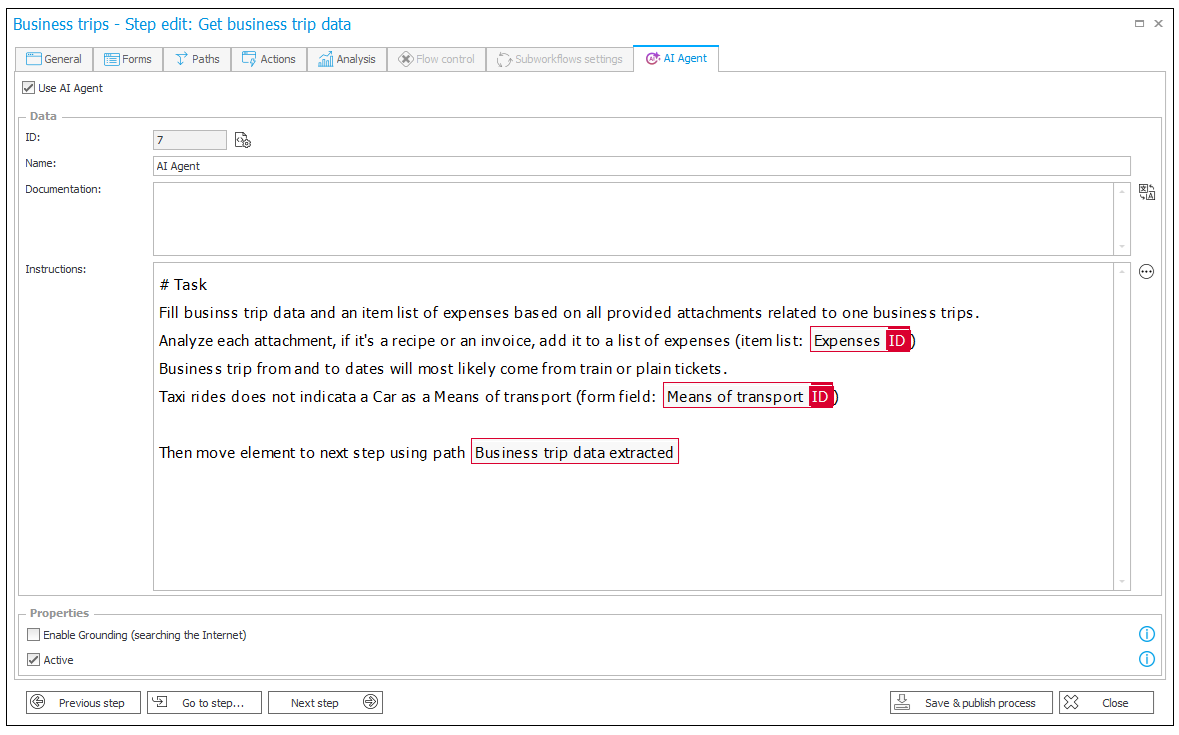
Using variables allows to insert values from the form fields inside a prompt to make it specific for each processed instance of a workflow.
An example has been already presented above, in the case of generating content on the given subject an in a specific style.
Business rules allows to insert values from any place of the system - including data sources.
As an example, consider a process for storing meeting notes and preparation for next meetings. This can be a part of a larger CRM application.
First workflow will be responsible for meetings transcription, summarization and responding to Client. Transcription is created using AI Create transcription action. Internal summary and the response is prepared by AI Agents.

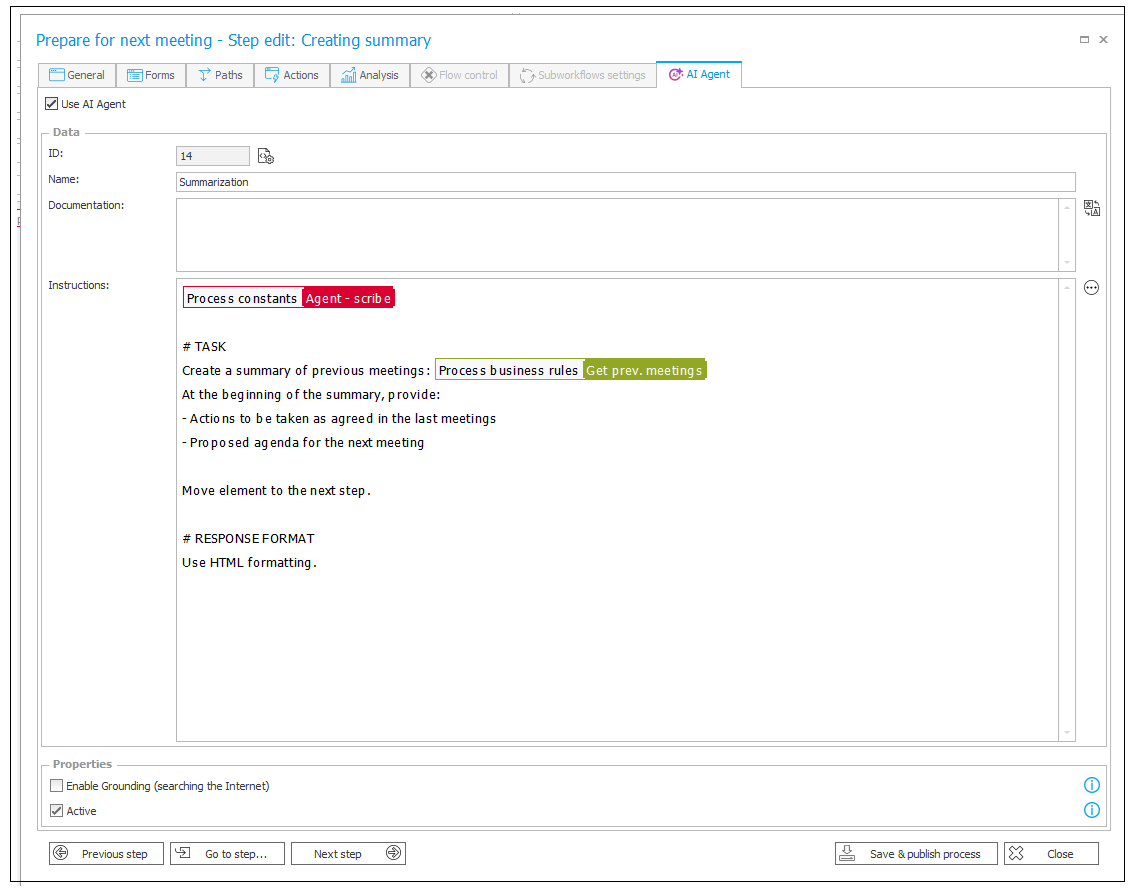
Second workflow support users in preparation for next meetings.

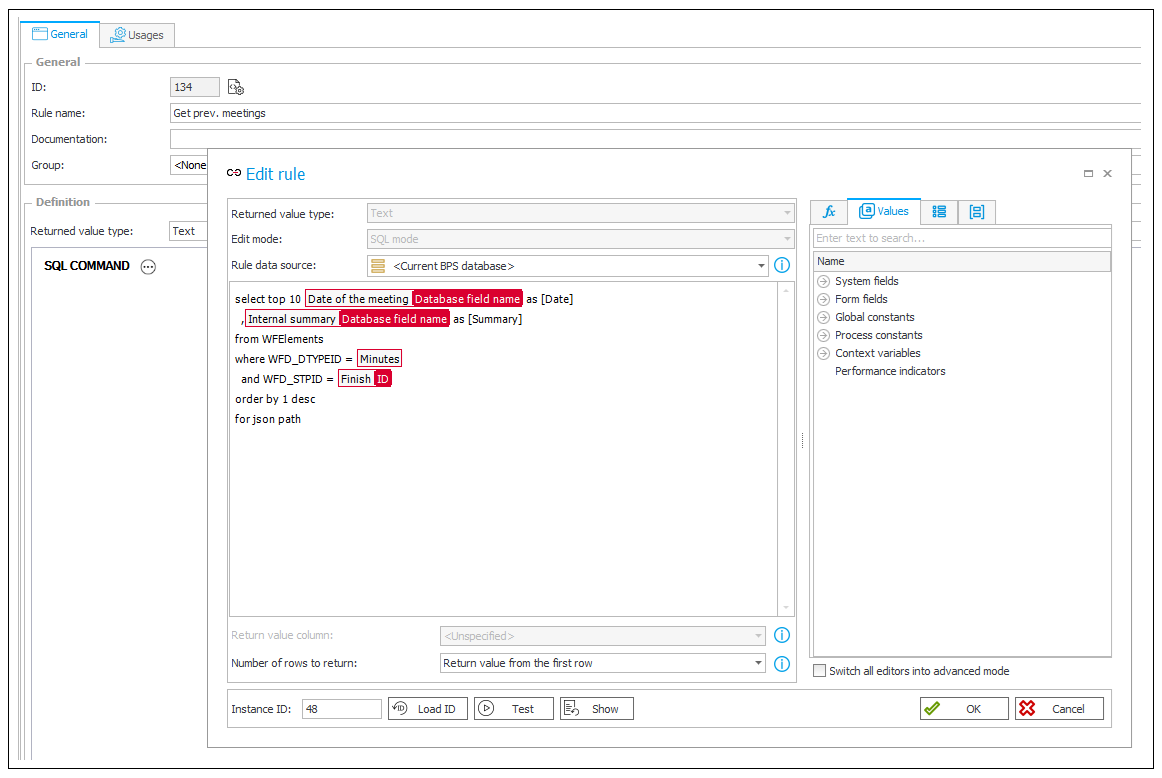
In this workflow, AI Agent receives summaries of previous notes as part of the instruction though a business rule.
Business rule is defined as follows
After generating a summary, this is how a form on "Verification" step can look like:

Reuse instructions
Shared instructions - such as role description or response formats - can be saved in one place to be reused across the system.
Constants
First option is to use process or global constants.
// process / global constant
Name: `AI Expert - Marketing Content Creator (description)`

Value: `You are a creative content creator specializing in marketing materials designed for use across various communication channels.
You are familiar with the latest trends in the low-code platform market, and the content you create relates to topics such as business process automation, low-code, RPA, etc.`.
Then use this constant in all places relevant to that AI Expert.

Dictionary processes
Second option is to use Dictionary processes. Combining them with global constants (storing each AI Experts ID) and a business rule to retrieve a description of a given AI Expert results in reusable configuration and easy modifications by the end users.


Knowledge base in files
The third option is to keep procedures and examples as attachments of elements in a separate workflow. Give them to AI Agent in Additional attachments (see AI Agent), using a business rule that returns the attachment ID. The rule can select a different file depending on the context, for example the company of the element.
AI Agent reads the files in the context of the WEBCON Workflow Service account. For AI PROMPT, access to the files depends on the configuration in which the business rule is called.
For more information on preparing knowledge for AI Agents, see Knowledge for AI Agents.
Advantages of this solution:
- The current procedure is explicit and available in one place. People and AI Agents use the same source to understand how decisions are made, instead of reconstructing the rules from past cases.
- The knowledge can be updated without changing the process configuration.
- File versions and change history help manage the knowledge throughout its life cycle.
Structured output
When working with text outputs it is sometimes useful to specify the response format. In the most basic case, when text itself is the final result, it means guiding AI to use some specific order of content, using bullet points, markdown, html, headers etc.
// AI Agent or AI PROMPT
# TASK

Based on the attached file containing a description of the client meeting, create a short summary note of the meeting. The note is for internal use only.

# RESPONSE FORMAT

Return the response in HTML format:

<h3>Meeting Summary</h3>

<h4>Topics Discussed</h4>
<ul>
<li>topic 1</li>
<li>topic 2</li>
</ul>

<h4>Decisions Made</h4>
<ul>
<li>decision 1</li>
<li>decision 2</li>
</ul>

<h4>Tasks to be Completed</h4>
<ul>
<li><strong>Person:</strong> task (deadline: date)</li>
<li><strong>Person:</strong> task (deadline: date)</li>
</ul>

<h4>Final Conclusions</h4>
<p>brief summary text</p>

Communication style:
- Concise, technical, operational
- No HTML comments
More advanced use case is to ask AI to return a structured response to be then processed with subsequent business rules or actions.
Collections
This leverages the concept of collections, which in WEBCON rules are a lists of values separated by ;. This allows easy parsing using GET AT INDEX [] [] business rule or FOR EACH operator.
// AI PROMPT

# TASK

Rate something from 1 - 5 and provide a short justification.

# RESPONSE FORMAT
Respond in the format: "{Rating};{Justification}", where:

{Rating}: a number from 1 to 5, with 5 being the highest rating.
{Justification}: a brief justification for the rating, with a maximum of 255 characters, without the ";" character.
The ; character in a value splits it into two collection items. In the instruction, forbid this character in the text, or put the free text as the last collection item.
Response from AI PROMPT can be saved as local automation parameter or technical form field and later extracted by business rules:
GET AT INDEX [1] [{response}] = {Rating}GET AT INDEX [2] [{response}] = {Justification}
JSON
Returning a JSON object can be useful to process the result using SQL or JavaScript. It can be achieved by simply explaining a desired output JSON structure or using json-schema.
// AI PROMPT

# ROLE
You assist users in filling out purchase requests.

# TASK

Analyze the user's description. If it's a purchase or demand, return:

# RESPONSE FORMAT
{
  "$schema": "http://json-schema.org/draft-04/schema#",
  "type": "object",
  "description": "Purchase request assistant response",
  "properties": {
    "Category": {
      "type": "string",
      "description": "Request category: Software, Hardware, or Services"
    },
    "ShortTitle": {
      "type": "string",
      "description": "Brief summary of the request"
    },
    "AverageCost": {
      "type": "number",
      "description": "Estimated cost of the item or service"
    },
    "Hint": {
      "type": "string",
      "description": "Suggestion for improving the request description"
    }
  },
  "required": ["Category", "ShortTitle", "AverageCost", "Hint"]
}
Result can be processed by a form rule in JS mode:
AIresponse = JSON.parse(GetValue('#{FLD:1}#'));
SetValue('#{FLD:2}#', AIresponse.ShortTitle);
SetTypedValue('#{FLD:3}#', { value: AIresponse.AverageCost });
SetValue('#{FLD:4}#', AIresponse.Category);
if (AIresponse.Hint !== undefined) {
  SetValue('#{FLD:5}#', AIresponse.Hint);
  ShowField('#{FLD:6}#');
}
// replace #{FLD:X}# with form fields identifiers
See this article on WEBCON community for use cases implementing that approach.
Debugging
AI Agent
List of all AI Agent Jobs to be executed and completed can be found in Legacy Designer Studio > Reports > Basic reports > AI Agent Jobs. This report presents data from last 14 days, and is by default sorted by latest date of completion (if JOB is already processed) or insertion.
Successfully completed AI Jobs will have a reasoning provided, which gives insight into which tools and why were selected by AI.
Example AI Agent instructions:
// AI Agent
# TASK

Briefly review whether the provided content aligns with the topic "New UI" and the style "Landing page description". Check spelling, grammar, and style.


# RESPONSE FORMAT

Respond only in plain text, without HTML, markdown, or icons. You may use new lines and bullet points using the '-' character.
Reasoning returned by AI Agent for these instructions:
[
  {
    "Reasoning": "The user`s message requires reviewing content for alignment with a topic and style, checking spelling, grammar, and style, which involves setting form fields. The FormFieldSetter tool is selected to fill the required `Review` field. The PathChooser tool is selected to determine the appropriate path for moving the instance to the next step. No attachments are selected because the user`s message does not mention any attachments. No pickers are selected because there are no specific instructions on setting any pickers based on the context and available tools. The ElementSaver is not selected because user asks to navigate to another step.",
    "Operation": "CreateSession"
  },
  {
    "Reasoning": "The `Review` field was updated based on the analysis of the provided content in relation to the `Landing page description` style. The analysis highlights areas for improvement regarding style, grammar, and content focus.",
    "Operation": "FormFieldSetter"
  },
  {
    "Reasoning": "The user`s task is to review the content and fill the form fields, so the path `finish review` is the most appropriate to submit the instance to the next step after the review.",
    "Operation": "PathChooser"
  }
]
AI Concierge
Reasoning, similar to the examples for AI Agents, can be found in diagnostic mode.
Advanced AI PROMPT
Tool selection
Some decisions can't be made by deterministic IF/THEN algorithm, but once the decision is made, it's clear what to do next. In such cases, AI PROMPT can implement this decision logic and the rest of the execution can be handled by other actions available in WEBCON.
By requesting AI to return a specific keyword, associated with one of next available actions it's easy to create an effective SWITCH statement (or use it in flow control step) to execute an action selected by AI. Result of that action can itself be passed to AI PROMPT or saved on the form and used by AI Agent.
# Task
You'll be given a simple math problem select the best tool to solve it.


# Tools:

## `Add`
Adds two integers.
Parameters: `a`, `b` two numbers to be added

## `Multiply`
Multiplies two integers.
Parameters: `a`, `b` two numbers to be multiplied

# Output
Always return values in this format: `tool_name`;`a`;`b`
Automation:

AI PROMPT:

Usage:

MCP Servers
This section focuses on the application-specific MCP server, which lets process designers expose their own tools to external MCP clients through API Definitions. For setup details, see application MCP server configuration. The General MCP server and Designer Studio MCP server are described in separate articles. Configuration of the general and application-specific MCP servers in Legacy Designer Studio is covered in MCP Servers – Legacy Designer Studio.
Best practices
- Start by testing a connection from your MCP client to the General MCP Server.
- Add Application-specific tools only when you have a concrete need.
- Expose the smallest possible tool surface area: prepare only the required API Definitions and keep tool names stable to avoid breaking client prompts.
- Treat API Definition documentation as user-facing tool docs: describe purpose, required inputs, side effects, and constraints in a short and explicit way.
- Remember that MCP tool operations are executed in the context of the currently logged-in user. Execution of operations is restricted according to that user's roles and privileges.
- For tools generated from API Definitions in
Get data from the data sourcemode, returned data depends on the configured source. Internal WEBCON sources such as WEBCON views can respect platform privileges, while other sources such as SQL, REST, or fixed lists return data according to their own configuration.
Example: Expose existing automation
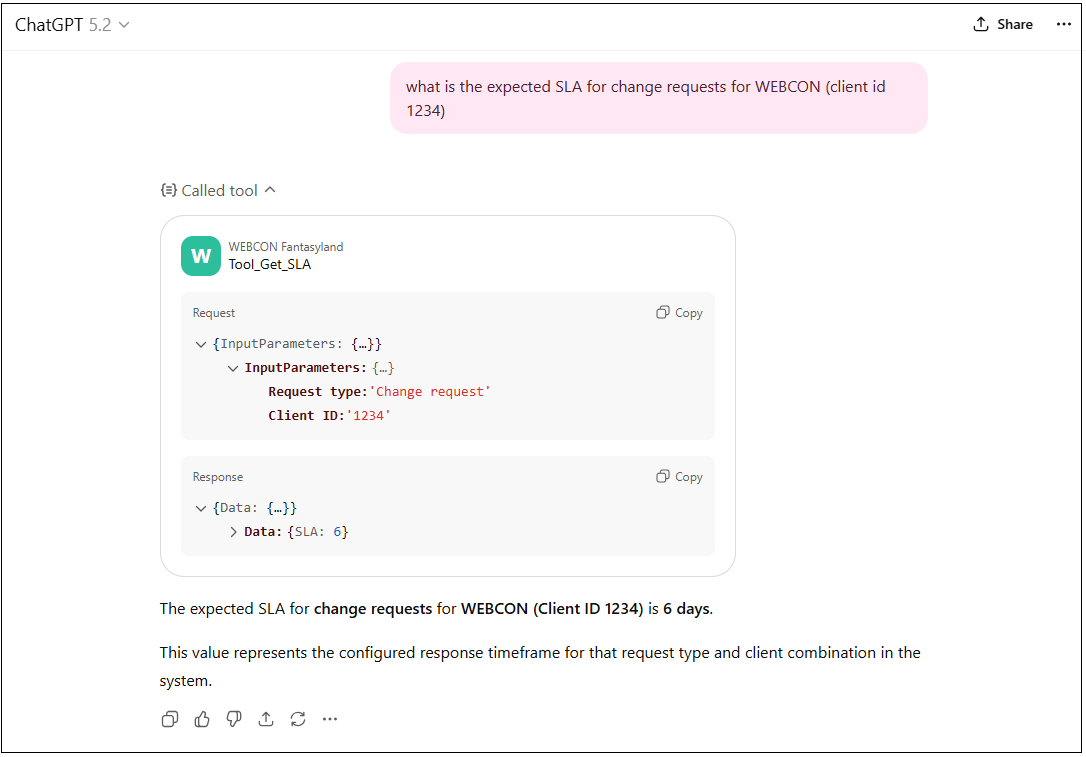
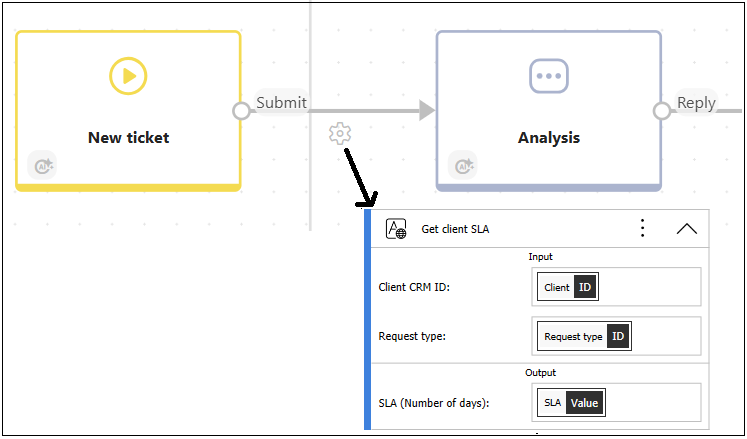
In this example, the automation calculates the expected response time. It takes a client identifier and request type as input and returns the number of days allowed for a response. Implementation details are hidden from all consumers.
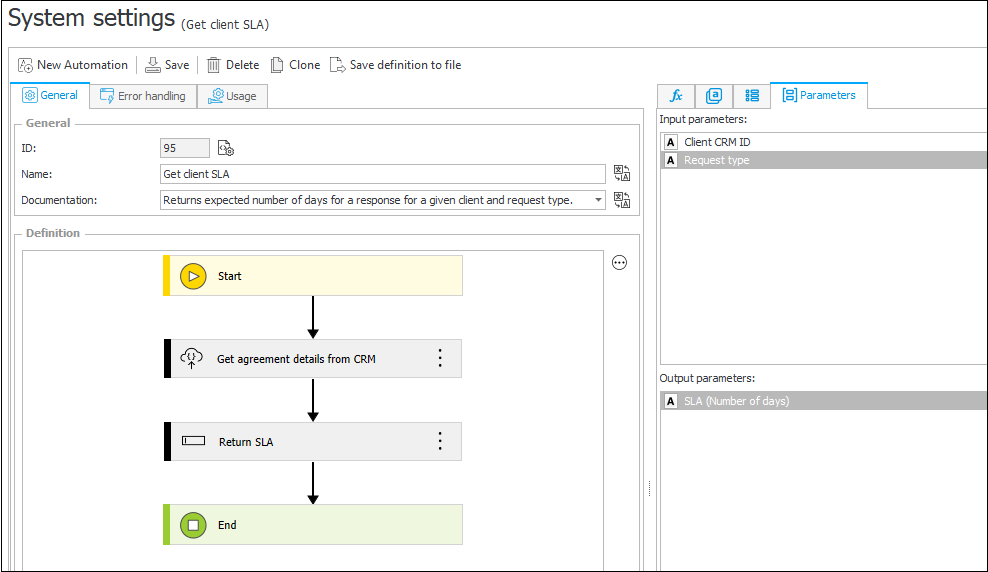
Firstly, it can be used directly in a workflow - in this example, as an action on path transition, calculating SLA for each new ticket.
Secondly, it can be used as the automation in an API Definition that accepts two input parameters and returns the calculated SLA.
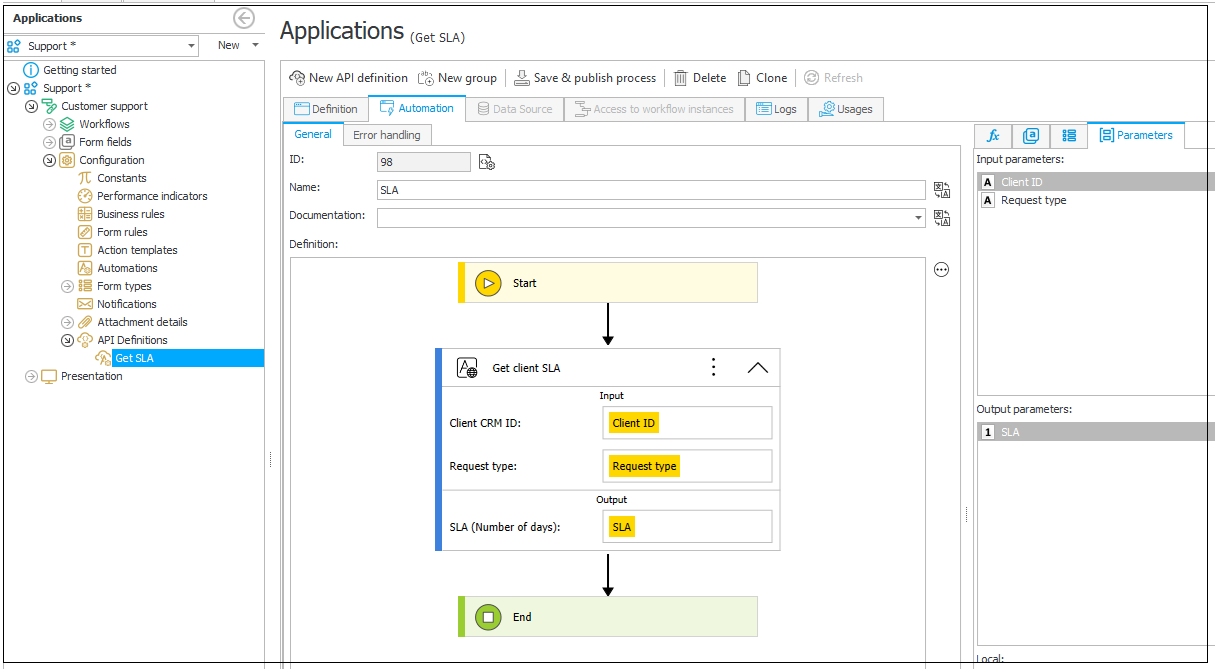
That API Definition can be then invoked via REST API or exposed through MCP. MCP client can discover and invoke it as a tool using the same inputs and receiving the same output.