Step 4: Select substitute
In this step you can choose how substitutions are managed in a process. The step window provides two display modes: advanced and basic.
Basic
The basic display mode contains general step configuration options.
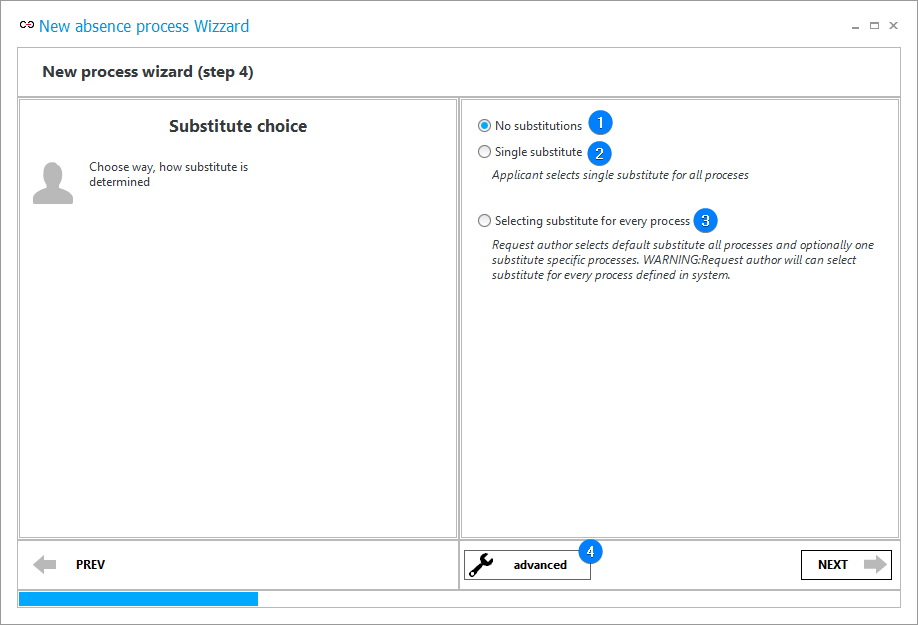
1. No substitutions
When selected, substitutions are disabled.
2. Single substitute
When selected, a "Substitute" form field of Person or group type is created in which you can choose one substituting person for all processes.
3. Selecting substitute for every process
A list of items is created where you can specify a substituting person for each process during the registration of the request. A "Default substitute" form field of Person or group type is added to specify a substituting person for all processes that are not listed on the item list.
4. Advanced
Some steps provide advanced options. The button allows you to switch between the advanced and basic display mode.
Advanced
The advanced display mode contains additional configuration options.
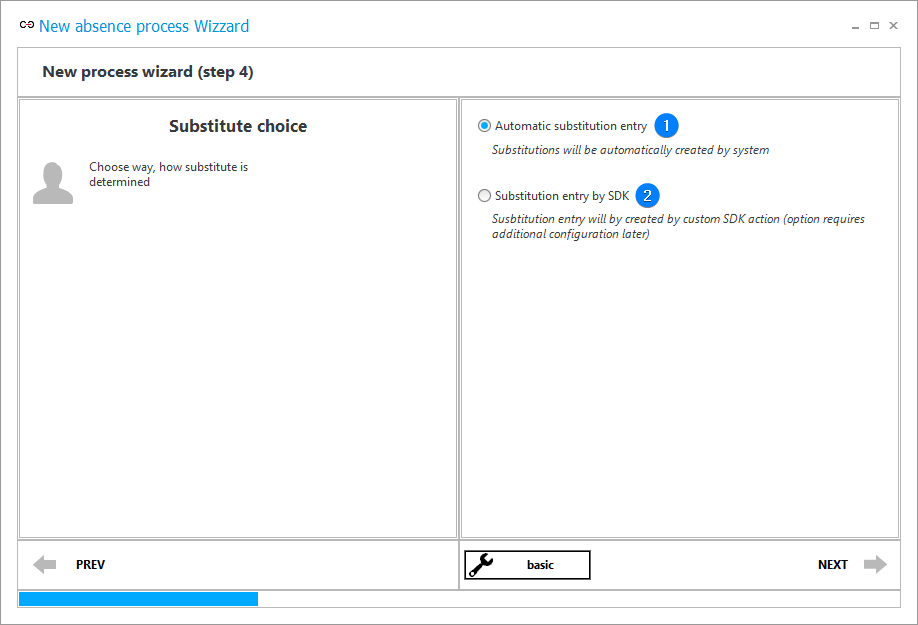
1. Automatic substitution entry
When selected, the system automatically adds substitutions.
2. Substitution entry by SDK
A substitution entered by means of an SDK action. Additional configuration is required for this option.