OneDrive
The connection enables integration between WEBCON and the OneDrive service. It is used by the OneDrive file editing actions, which place copies of form attachments on a OneDrive drive, grant access to them, and retrieve the edited files back into the system.
The connection, like all other connections in the system, is transferred via the import/export mechanism, i.e. the connection appears in the tooltip when importing files, if it is used in the process.
The connection ID is stored in the metadata of attachments so that the user can work with the correct file from the form level. If a file has been checked out in OneDrive and the connection on which the operation was performed has since been deleted, the file will remain in the OneDrive location.
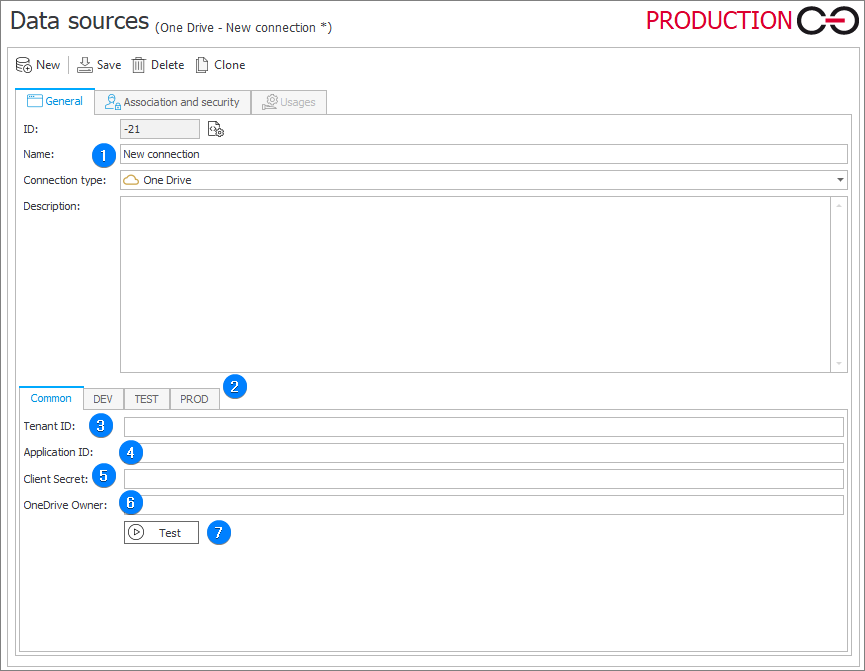
1. Basic connection parameters
- ID – the connection identifier (if the value is smaller than "0", the connection has not been saved in the database yet).
- Name – name of the connection entered by the user.
- Connection type – the field allows you to specify a connection type. The field is filled in automatically.
- Description – description of the connection entered by the user.
2. Environment
Defines the behavior of the connection in particular environments. The Common tab sets the default parameters that are to be used across all three environments (DEV/TEST/PROD). The tabs dedicated to the individual environments can be used to enter custom parameters. In such case, it is necessary to check the Break inheritance checkbox (this will override the settings specified in the Common tab) and then enter the desired connection settings.
3. Tenant ID
The tenant identifier in the Microsoft Entra ID service. The value is available in the Microsoft Entra portal as Directory (tenant) ID on the app registration overview page.
4. Application ID
The identifier of the application registered in Microsoft Entra ID that is used for authentication (Application (client) ID in the Microsoft Entra portal). The application must be granted the permissions described in Required application permissions in Microsoft Entra ID.
5. Client Secret
Application/client secret. Enter the secret value (the Value column), not its identifier (Secret ID). The secret value is shown in the Microsoft Entra portal only immediately after the secret is created.
A client secret has a limited validity period. Once it expires, the connection test and OneDrive actions fail – generate a new secret and update it in the connection (in every environment where inheritance has been broken).
6. OneDrive Owner
Owner of OneDrive space where documents are stored (a dedicated technical account is required). Enter the account's UPN (e.g. onedrive.bps@company.com). The account must have a license that includes OneDrive, and its OneDrive must be provisioned before the connection is used for the first time.
7. Test
Testing the connection to the OneDrive server. The test authenticates the application with the parameters provided and then reads the OneDrive of the specified owner. If any of the required fields is empty, the test is not run – a message indicating the missing field is displayed. The most common error messages are described in Troubleshooting.
A successful test confirms only that the application can authenticate and read the owner's OneDrive. The test does not check whether the application can save files or grant permissions to them – missing permissions of this kind surface only when OneDrive actions are executed.
8. Required application permissions in Microsoft Entra ID
The OneDrive connection authenticates as an application – without a signed-in user. For the connection test and OneDrive actions to work, the application registered in Microsoft Entra ID must be granted one of the following Microsoft Graph permissions of the Application type (application permissions, not delegated permissions).
| Permission | Access scope | Notes |
|---|---|---|
| Files.ReadWrite.All | All OneDrive drives in the organization | The simplest configuration. This is a broad permission and may conflict with the organization's security policy. |
| Sites.Selected | Selected OneDrive drives (site collections) only | Adding the permission alone does not grant access to any drive – an administrator must additionally grant the application access to the owner's OneDrive (see below). |
To grant the permission, open the app registration in the Microsoft Entra portal, go to API permissions, select Add a permission → Microsoft Graph → Application permissions, check the required permission, and then click Grant admin consent. Without admin consent the permission is not active.
Configuration with the Sites.Selected permission
With Sites.Selected, the application can access only the site collections that an administrator has explicitly granted it. For the OneDrive connection, this is the personal site (OneDrive) of the account specified in the OneDrive Owner field – the address of such a site has the form https://<organization>-my.sharepoint.com/personal/<account_name>.
Access is granted by a Microsoft 365 administrator, e.g. with a PowerShell script or Microsoft Graph, by assigning the application a role on that site. OneDrive actions not only save files but also grant and remove user permissions to them, so the application needs at least the write role. If granting file permissions fails with a 403 error, assign the application the fullcontrol role. This configuration is not available in the WEBCON interface. The procedure is described in detail in the article Controlling app access on specific SharePoint site collections and in the Selected permissions in OneDrive and SharePoint documentation.
The OneDrive Owner parameter must point to exactly the account whose site the application has been granted access to. Changing the owner in the connection requires granting the application access to the new account's OneDrive.
User permissions to files
The actions grant edit permissions to files on OneDrive automatically, based on the user identifier in UPN format – users must have a Microsoft Entra ID account. As of version 2026.1.1.45, the Start editing a file using OneDrive action grants permissions to all users who can be identified and logs the remaining ones as warnings – a missing account for one user does not stop the action.
9. Troubleshooting
Error messages returned during the connection test or OneDrive action execution often come directly from Microsoft services:
- messages containing a code starting with AADSTS come from Microsoft Entra ID and concern application authentication – they are described in the Microsoft Entra authentication and authorization error codes list,
- messages with codes such as accessDenied, itemNotFound, or invalidRequest (and HTTP status codes, e.g. 401, 403, 404) come from Microsoft Graph – they are described in Microsoft Graph error responses. After a connection test, the Microsoft Graph response is displayed in JSON format – the code and message fields indicate the cause of the error.
Detailed information about connection test and OneDrive action errors is written to the Windows Event Log. As of version 2026.2.1.62, the logged information is more detailed, making it easier to diagnose connection configuration issues.
Most common problems:
| Symptom | Cause | Solution |
|---|---|---|
| Message with code AADSTS90002 or AADSTS900023 (tenant not found or invalid tenant identifier) | Incorrect value in the Tenant ID field. | Copy the Directory (tenant) ID from the app registration overview page in the Microsoft Entra portal. |
| Message with code AADSTS700016 (application not found in the directory) | Incorrect value in the Application ID field, or the application is registered in a different tenant than the one specified in Tenant ID. | Check the Application (client) ID and the tenant in which the application is registered. |
| Message with code AADSTS7000215 (invalid client secret) | The secret identifier was entered in the Client Secret field instead of its value, or the value is incomplete. | Generate a new client secret and enter its value (the Value column). |
| Message with code AADSTS7000222 (client secret expired) | The client secret validity period has ended. | Generate a new client secret and update it in the connection in all environments. |
| Authentication succeeds, but a 401/403 or accessDenied error is returned | The application has neither Files.ReadWrite.All nor Sites.Selected, a delegated permission was granted instead of an application permission, or admin consent was not given. | Grant an Application type permission and click Grant admin consent (see Required application permissions). |
| 403 or accessDenied error with the Sites.Selected permission | The application has not been granted access to the OneDrive of the account specified in OneDrive Owner, or it was granted access to another account's site. | Grant the application access to the owner's personal OneDrive site with at least the write role (see Required application permissions). |
| The connection test succeeds, but the Start editing a file using OneDrive action returns a 403 or accessDenied error | The application has read-only access (e.g. the Files.Read.All permission or the read role with Sites.Selected) or cannot manage file permissions. | Grant the Files.ReadWrite.All permission or an appropriate role with Sites.Selected (see Required application permissions). |
| 404, itemNotFound, or ResourceNotFound error concerning the owner or their drive | The account specified in OneDrive Owner does not exist (e.g. a typo in the UPN), has no OneDrive license, or its OneDrive has not been provisioned yet. | Check the account's UPN and license. Provision the OneDrive, e.g. by signing in to OneDrive with this account once. |
| The action succeeds, but some users cannot access the file on OneDrive (warnings in the action log) | The users do not have a Microsoft Entra ID account or cannot be identified by their UPN. | Check the user accounts in Microsoft Entra ID. If needed, update the permissions with the Update privileges for a OneDrive file action. |
| When opening a file, the user sees a OneDrive sign-in window | The user is signed in to WEBCON by a method other than Microsoft Entra ID (e.g. Active Directory). | Sign in to OneDrive with the Microsoft Entra ID account that has been granted access to the file. |
| A user who was granted access to the workflow instance after the file was placed on OneDrive cannot access the file | File permissions are granted when the file is placed on OneDrive – later changes to instance permissions are not applied automatically. | Update the permissions with the Update privileges for a OneDrive file action. |
| Occasional 429 (too many requests) errors or longer action execution | Microsoft Graph is temporarily throttling requests. | Requests are retried automatically. If the error persists, repeat the operation later. |
Detailed information on configuring the OneDrive integration is available in the article Working with OneDrive files on our technical blog.