Administrative notifications
The node allows you to configure administrative notifications sent by the system.
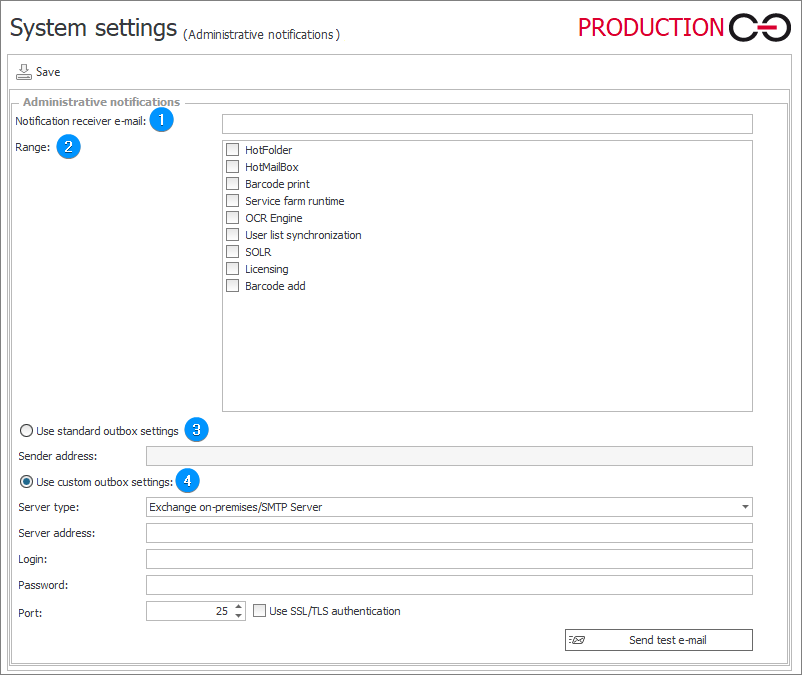
1. Notification receiver e-mail
The field allows you to provide a correct e-mail address of a person who will receive all administrative notifications in accordance with the Range configuration.
2. Range
By using the checkboxes it is possible to quickly define the range of received administrative notifications:
- HotFolder – information regarding HotFolder operation (e.g. failure to start an instance),
- HotMailbox – information regarding HotMailbox (e.g. problem with processing an attachment or starting an instance correctly),
- Barcode print – the notifications sent regard barcode print actions,
- Service farm runtime – all important activity of farm services, e.g. service restart,
- OCR Engine – information about file processing and OCR AI actions,
- User list synchronization – information about cyclical user list synchronization (configured in the BPS users and groups list tab),
- SOLR – information regarding SOLR,
- Barcode add – the notifications sent regard barcode generation operations.
3. Use standard outbox settings
After selecting the checkbox, the system applies settings provided in the Configuration of sending e-mails node.
- Sender address – the field becomes active after selecting the Use standard outbox settings checkbox. It allows you to overwrite the settings provided in the Configuration of sending e-mails node by specifying here a correct e-mail address which will be displayed as a notification sender e-mail address.
4. Use custom outbox settings
The field enables defining a separate outbox for dispatching administrative notifications. The set of fields available after selecting the checkbox depends on the type of server chosen in the Server type field.
Exchange on-premises/SMTP Server
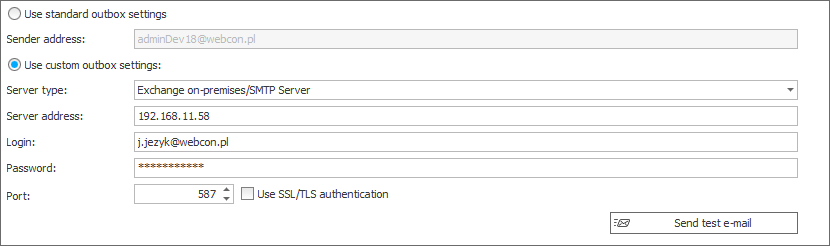
- Server type – a drop-down list that enables the selection of the server from which system e-mails are sent. There are two types of global servers available: Exchange on-premises/SMTP Server and Exchange Online - Microsoft Graph. Selecting one of the available options affects the layout of the section and the fields available in it,
- Server address – the address of the server with which the system connects,
- Login – the name of the user with access to the server,
- Password – the password that authorizes the user,
- Port – the port of the service available on the server,
- Send test e-mail – clicking the button results in sending a test e-mail message and thus allows you to verify whether the configured server operates correctly.
Exchange Online – Microsoft Graph

- Server type – a drop-down list that enables the selection of the server from which system e-mails are sent. There are two types of global servers available: Exchange on-premises/SMTP Server and Exchange Online – Microsoft Graph. Selecting one of the available options affects the layout of the section and the fields available in it,
- Tenant ID – a unique identifier assigned to an organization in the Microsoft cloud,
- Application ID – the connection parameters that define the application which must be registered in Microsoft Azure Portal. The application should have Mail.Send permissions with regard to Microsoft Graph,
- Client secret – a unique client secret key used for authenticating the application,
- Account – the principal user name (User Principal Name) or an ID identifier to the Exchange account which will be used for sending messages,
- Send test e-mail – clicking the button results in sending a test e-mail message and thus allows you to verify whether the configured server operates correctly.
To learn more about configuring the connection through Exchange Online – Microsoft Graph, read the ARTICLE available in the WEBCON Community website.