Security
The window is used to configure security options and change the settings of WEBCON BPS Portal cookies and tokens, as well as to adapt them to the security requirements dictated by company policy.
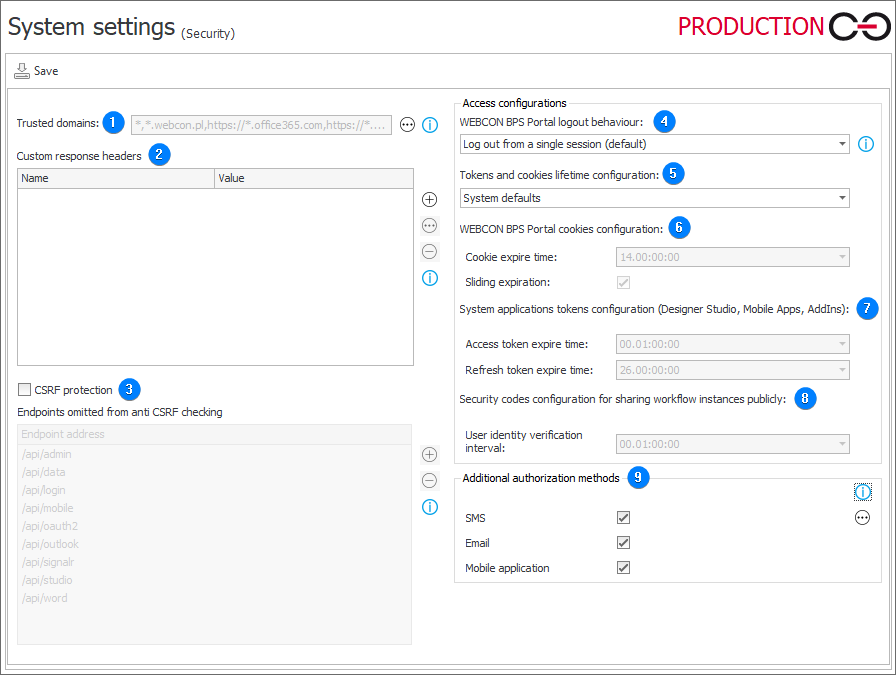
1. Trusted domains
Defines a list of trusted domains on which WEBCON BPS Portal instances can be displayed. WEBCON BPS Portal instances embedded on sites in domains not included in the trusted domain list will not be shown in the browser.
The feature is not available in Internet Explorer. WEBCON BPS Portal content is always shown in this browser even if the site domain on which the instances are embedded is not added to the trusted domains.
In order to embed Portal in Microsoft Teams and Microsoft Outlook, add the following domains to the trusted domain list:
https://*.office365.com
https://*.office.com
https://*.microsoft.com
If the Content-Security-Policy headers are configured and added to the frame-ancestors section, the list of trusted domains will be added to domains defined in this header. With the exception of the "*" entry, which is ignored in such case.
In order to ensure business continuity for existing installations, domains for MS Outlook, MS Teams, and the domain of a configured WEBCON BPS Portal will be added to the trusted domains by the migration script. It is possible to remove the additional entries by manually editing the trusted domains list.
2. Custom response headers
Defines a list of custom headers that are added to every response from WEBCON BPS Portal. This allows you to adjust its operation to specific security requirements.
The Content-Security-Policy header will be merged with the trusted domains values.
To learn more about adding headers, read the ARTICLE available in the WEBCON Community website.
3. CSRF protection
Protection against CSRF (Cross Site Request Forgery, CSRF) checks the Origin and Referrer headers in POST requests from the user’s browser.
A correct configuration protects all endpoints where a user is authenticated based on cookies provided by the browser.
Endpoints omitted from anti CSRF checking
Checking the specified headers is immediately omitted for endpoints relying on token authentication (the exceptions list should contain only such endpoints).
4. WEBCON BPS Portal logout behavior
The configuration allows you to specify the behavior of the WEBCON BPS Portal logout functionality. Available logout options:
-
Log out from a single session (default) – the user menu in Portal includes the Logout button which enables logging out of a single user session,
-
Log out from all sessions – the user menu includes both the Logout button for logging out of a single user session and the Global logout button for logging out of all user sessions across all devices,
-
Force logging out from all sessions – the user menu includes only the Global logout button which enables logging out of all user sessions across all devices.
infoFor more information on the WEBCON BPS Portal logout behavior, see THIS ARTICLE on our technical blog.
5. Tokens and cookies lifetime configuration
Tokens and cookies lifetime can be configured by selecting one of the following options:
- System defaults – applies predefined system values,
- User defined – applies values defined by the user. Selecting the option activates the fields contained in the sections below, i.e. WEBCON BPS cookies configuration, System applications tokens configuration (Designer Studio, Mobile Apps, Addins), and Security codes configuration for sharing workflow instances publicly.
6. WEBCON BPS Portal cookies configuration
Cookie expire time
The lifetime of cookies in the dd.hh:mm:ss format. The default value is 14 days.
Sliding expiration
This option is used to automatically extend the cookie expire time. If checked, the extension occurs during a WEBCON BPS Portal reference when half of the cookie expire time has passed. A new cookie is then issued, which will be valid for a period corresponding to the value of the Cookie expire time parameter. If unchecked, the cookie expire time is not extended in any way.
7. System applications tokens configuration (Designer Studio, Mobile Apps, AddIns)
Access token expire time
The access token expiration time in the dd.hh:mm:ss format. The default value for this field is 1 hour.
Refresh token expire time
The refresh token expiration time in the dd.hh:mm:ss format. The default value for this field is 26 days.
8. Security codes configuration for sharing workflow instances publicly
User identity verification interval
The time after which it is necessary to reauthorize access to an instance gained by opening the received link.
To learn more about interval for reauthorization, read the ARTICLE available in the WEBCON Community website.
9. Additional authorization methods
The configuration enables you to designate the methods of additional authorization that the end user can leverage when the additional authorization (path transition authorization, authorization to access confidential form data) has been disabled in the process configuration. It is mandatory to have at least one active additional authorization method.
-
SMS – a one-time authorization code will be sent to the phone number of the end user performing the activity that requires additional authorization. The phone number to receive the code via SMS is specified in the user’s profile. The user must enter the authorization code in the form window to confirm their identity and proceed with their work. If no phone number is provided for the user, they won't be able to authorize through this channel.
infoFor more information on SMS notifications, see THIS ARTICLE on our technical blog.
-
Email – a one-time authorization code will be sent to the email address of the end user performing the activity that requires additional authorization. The user must enter the authorization code in the form window to confirm their identity and proceed with their work.
-
Mobile application – a push notification will be sent to the device on which the mobile application is installed to confirm the identity of the end user performing the activity that requires additional authorization. To use this method of additional authorization, the user must have installed the latest version of the mobile application and added their device to trusted devices, as configured in the user’s profile.