Add attachment
The action is used to add attachments to a workflow instance. Attachments can come from another specified workflow instances or can be selected with an SQL query.
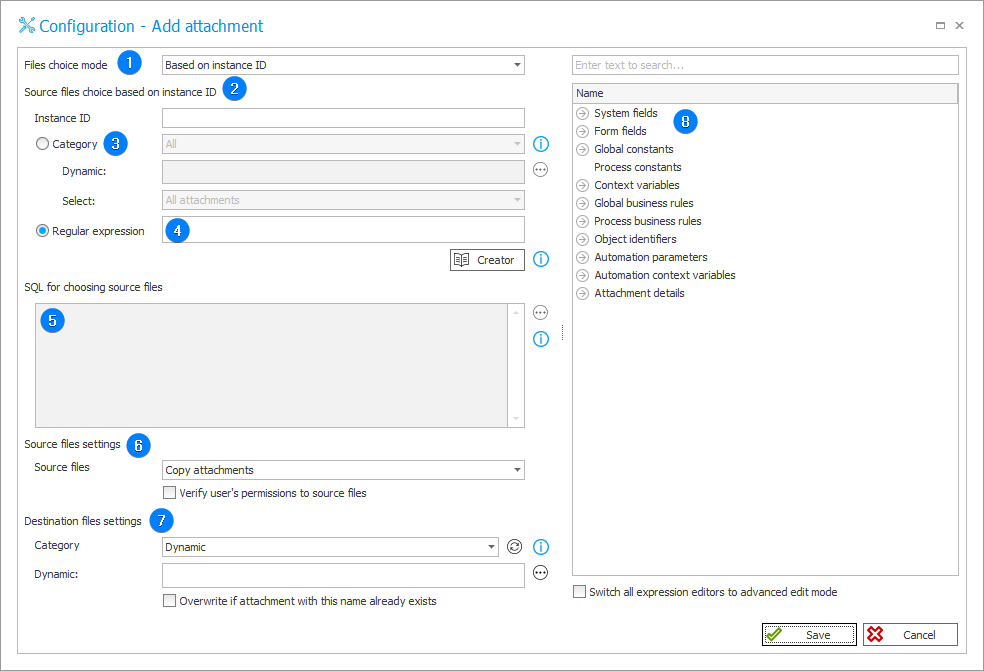
1. Files choice mode
Add an attachment to the current workflow instance from another instance Based on instance ID or Based on SQL query.
2. Source files choice based on instance ID
Define the ID of the workflow instance from which attachments will be loaded.
3. Category
Attachments to be processed will be selected based on their category.
Define it by selecting one of the following options:
- All – attachments belonging to all categories will be selected,
- Dynamic – create the category dynamically (using Variables editor) or enter it manually. The category can be provided in WEBCON format (i.e. ID#Name) or as ID.
Additionally, specify which attachments from the chosen category should be selected: All attachments, only The oldest attachment or only The newest attachment.
4. Regular expression
Attachments to be processed will be selected based on a regular expression.
Use the Regex Creator as an aid in constructing the expression.
5. Based on SQL query
Attachment selection via SQL query can work in two ways:
-
When selecting from the pool of attachments that exist in the WEBCON system, the query should return list of attachment IDs from the "WFDataAttachmets" table.
ExampleSELECT [ATT_ID] FROM [WFDataAttachmets] WHERE [ATT_Name] IN ('file.docx', 'file2.docx');When it is required to change the attachments' name or description, the query should additionally return
FileNameand/orDescriptioncolumns. -
When attachments are to be created when executing the action, the query must return columns
FileNameandContent, containing the attachment’s name and byte content. The query may also return aDescriptioncolumn if required.ExampleSELECT convert(image,<binaryContent>) AS Content, 'file1.txt' AS FileName
6. Source files settings
Defines what will happen with source files once they have been added to the target workflow instance.
-
Copy attachments – attachments will be added to the current workflow instance, they will also remain on the source instance.
-
Move attachments to the current instance – attachments will be added to the current workflow instance. After being added, they are removed from the source instance.
-
Verify user’s permissions to source files – if the current user does not have privileges to access the source files, they will not be added to the workflow instance.
7. Destination files settings
Defines the behavior of attachment files after they are added to the workflow instance.
-
Category – defines to which category the files will be assigned after being added to the workflow instance:
- Dynamic – enter the name of the category to which the attachment will be assigned,
- None – after being added, the attachment will not belong to any category.
-
Overwrite if attachment with this name already exists – the existing attachment will be overwritten if the workflow instance already has an attachment with an identical name.
8. Variables editor
Dynamically generated tree containing all variables that may be used in the current location of Designer Studio. Information on how to use variables in WEBCON, as well as a list of variables can be found here.
For more information, see the article The "Add attachment action" on our technical bog.