AI Concierge
AI Concierge is a virtual assistant available in the Portal, including on mobile devices, that supports business users by automating selected operations.
Using the chat, you can initiate actions in the Portal and get support while working on a form, including filling form fields based on data from attachments.
The AI Concierge feature can be completely disabled in System settings (section Global parameters). This change can only be made by an administrator. Once disabled, AI Concierge is no longer available or visible in the Portal.
How to use AI Concierge
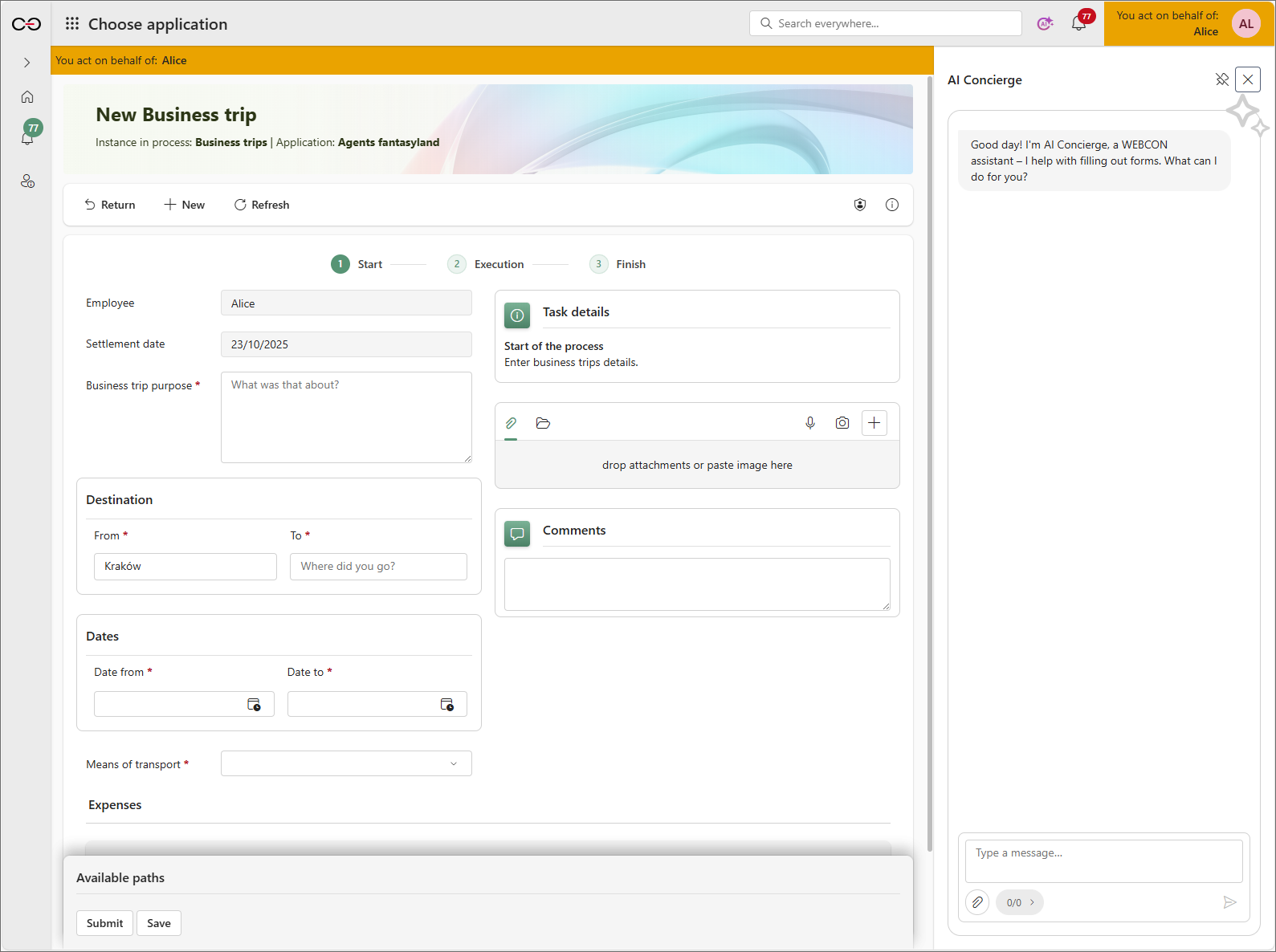
- To launch AI Concierge, click the AI icon in the top bar. This opens the side menu with the chat window.

-
Enter instructions for AI Concierge in the text field.
-
You can add attachments to the message. This process is described in the Reading data from attachments section.
-
Press Enter to send the instructions.
-
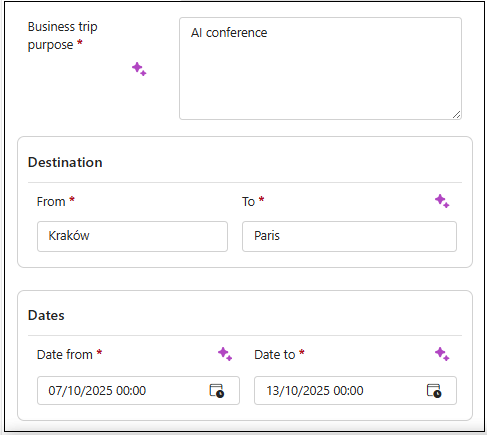
If AI Concierge changes values in form fields, the modified fields are marked with an icon.
Values generated by AI may be incomplete or incorrect, so always verify them before saving the instance.
AI Concierge does not remember previous messages, which means each instruction is analyzed independently.
Available features
1. Redirects in the Portal
Based on the message content, AI Concierge can suggest navigating to a selected location or starting a new instance. The redirection is only performed after you click the button in the chat.
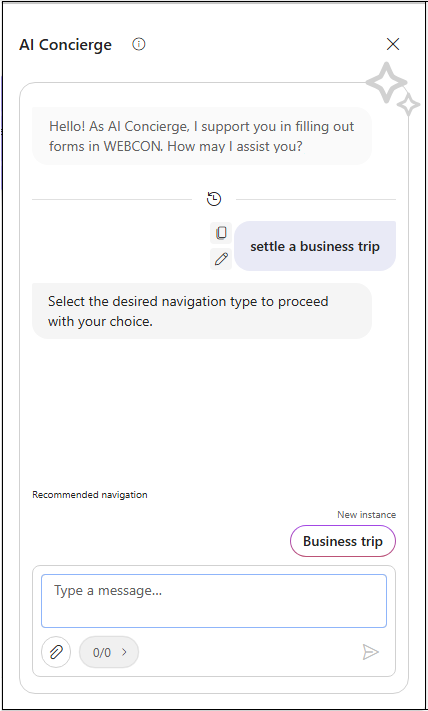
AI Concierge can suggest navigation to:
- an application,
- a report,
- a dashboard,
- a start button that opens a new workflow instance form:
- AI Concierge only considers start buttons with a defined process, workflow, and form type.
- When a new instance is started, the Business entity field may be filled in automatically or may need to be changed manually in the form, depending on the start button configuration and the visibility of the Business entity field.
- a favorite item (for more information: Favorites).
AI Concierge respects user privileges when suggesting redirects. It will not suggest navigation to locations the user cannot access.
If the command also includes data entry and the option to open a new workflow form is selected, AI Concierge will automatically start filling out the form once the user is redirected.
/goto command
To force redirect mode, start your message to AI Concierge with /goto.
The command is useful, for example, when you are working in a form context but need to navigate to another location in the Portal. /goto helps AI Concierge focus on navigation instead of filling in the current instance.
2. Form completion
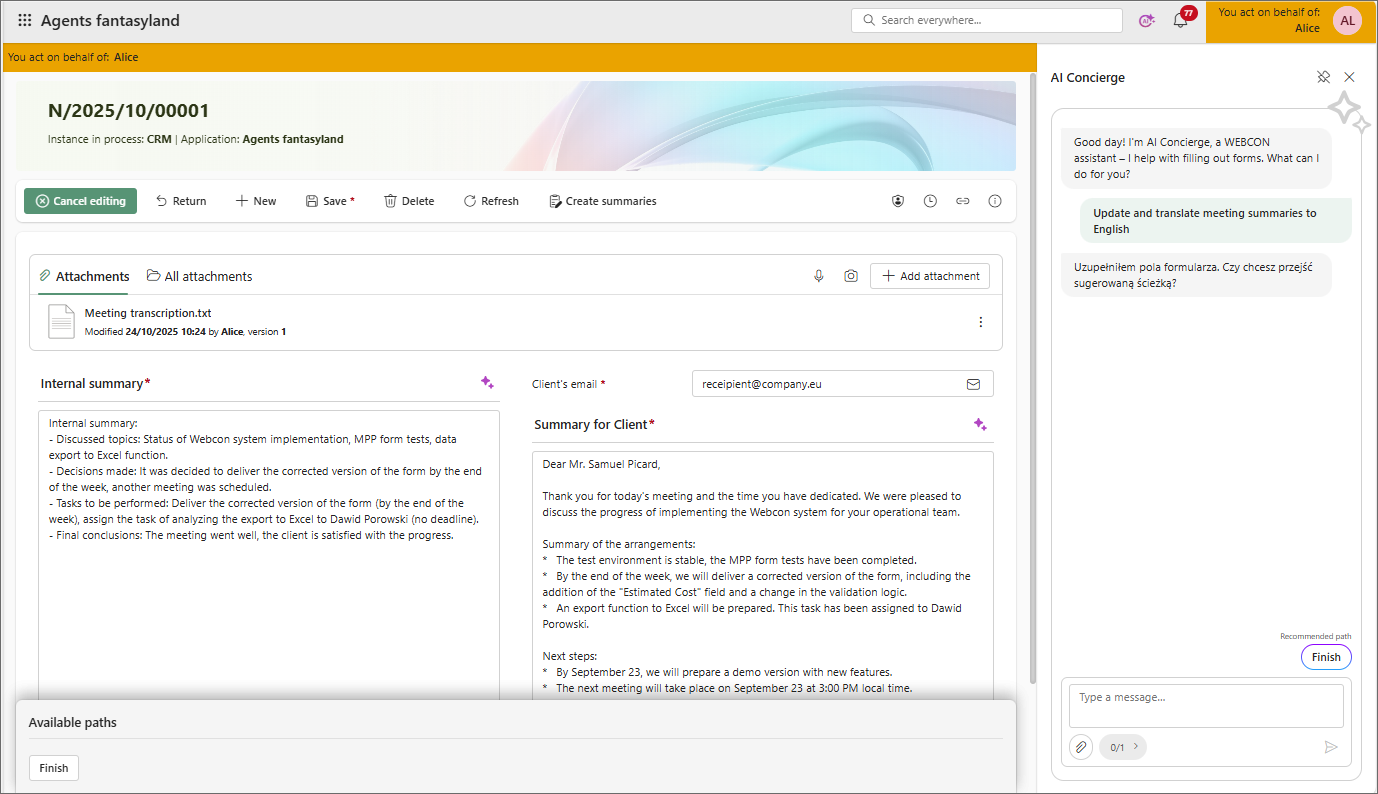
When using AI Concierge in a form, keep the following rules in mind:
- AI Concierge has access to current form field values, their descriptions, and information about their editability.
- It only fills visible and editable fields that can be modified using the
SETandSET ROW VALUEform rules. - It does not have access to technical form fields.
- For Item lists, it can add new rows, update existing rows, or replace them.
- It has access to task details (if the instance is opened in a task context), as well as the name and description of the step, workflow, process, and application.
- For Choice fields, AI Concierge can set a value from the first 100 options:
- This limit does not apply to Dropdown Choice fields.
- In the Choice field configuration, searching in the ID column must be enabled.
- It does not have access to dynamic data such as Data tables, reports, or widgets.
3. Reading data from attachments
After user consent is given, AI Concierge can use selected attachments to provide answers or fill forms. The user indicates which attachments can be processed. In the Available on item section, files are visible immediately, but they must be selected in the attachments panel. In the Uploaded from disk section, files are added manually by pasting a file into the chat or using the paperclip icon. AI Concierge processes only attachments selected in the attachments panel or added by the user. You can add up to 5 files from disk per message, and the maximum size of a single attachment is 20 MB.
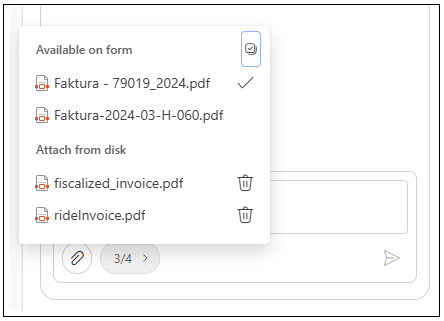
Some files attached to forms may be invisible due to their format. AI Concierge supports the following file formats: PDF, DOCX, DOC, RTF, TXT, XML, BPMN2.0, MSG, HTML, CSV, MD, WEBP, JPG, PNG, BMP, TIFF, SVG.
4. Suggestions for item modifications
During a conversation in form context, AI Concierge can suggest action buttons that let you perform operations such as moving along a workflow path, running an action from the menu, or saving the item. Performing a given operation always requires user participation and means accepting the changes suggested by AI Concierge.
After changes are saved, History does not include information about which fields were filled by AI.
For additional guidance on implementing AI solutions, see the AI Implementation Guide.