Settings
The tab contains a number of options that enable detailed configuration of a process.
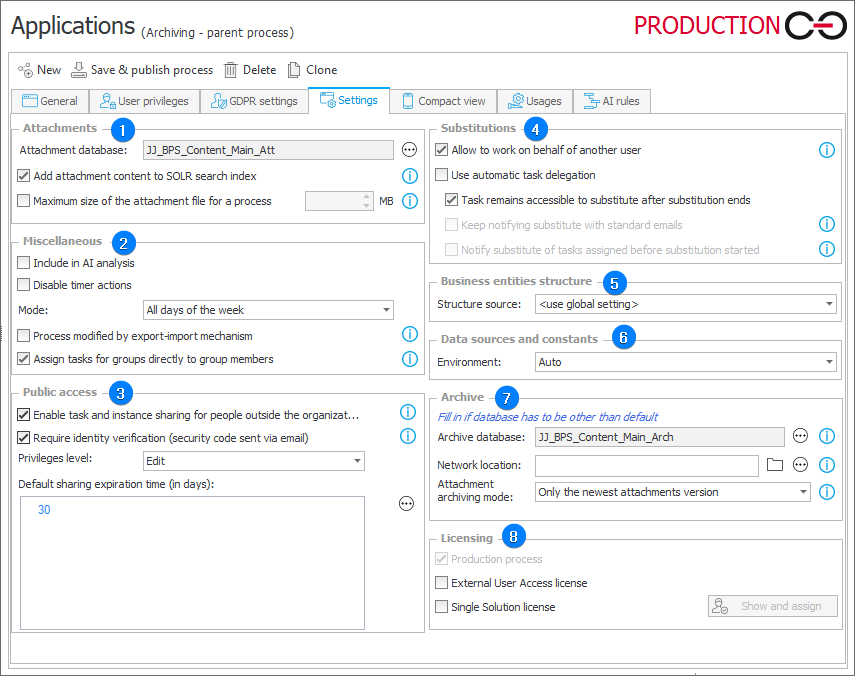
1. Attachments
Attachment database
Allows you to select an attachment database used by a process. If you do not select a database, attachments will be stored in the main database. It is recommended to use a separate database for attachments.
Add attachment content to SOLR search index
Enabling this option results in showing content of attachments in search results. When enabled, the text of documents that contain text layers (.txt, .docx, appropriate .pdf files) is placed in the SOLR index and can be found by the search engine.
If you do not wish for the content of attachments in a process to be accessible in search results, or if workflow instance attachments in a certain process are too large and would impede the SOLR index, you can disable this option.
Maximum size of the attachment file for a process
The parameter allows you to define the maximum size of an attachment file that can be added to process instances by users. If defined, the setting of the maximum size of an attachment in the system’s global parameters is ignored.
2. Miscellaneous
Include AI analysis
The function allows you to include process in the anomaly analysis. By selecting the checkbox you can choose process in the AI Analysis report. The report appears in the Anomalies section in Portal if at least one process has this option selected.
Disable timer actions
Disables all Timer actions (both global and on step).
Mode
The option is available as a drop-down list. It allows you to choose All days of the week or According to the working days calendar.
Process modified by export-import mechanism
When selected, all changes to the configuration of a current process must be made exclusively by the export-import mechanism. An attempt to manually modify the process results in an error message being displayed to a user. The option is active by default when the process definition is imported to the environment.
To learn more about configuring the option, read the ARTICLE available in the WEBCON Community website.
Assign tasks for groups directly to group members
Selection of this option indicates that, when creating tasks, tasks for groups are assigned directly to group members. As a result, after assigning a task to a group member, it remains active until its execution even if a user ceases to be a member of the group.
If the option is unchecked, when creating user tasks, tasks for groups are assigned to the group as a whole and not directly to group members. Consequently, a user loses the task when he ceases to be a member of a given group. Additionally, a task assigned to a group is considered completed by the system if any member of the group performs the task.
The option affects all places in the process configuration where rules for creating and assigning tasks to users are defined (e.g. configuration on the path, task creation action configuration).
The exception is the functionality of substitutions with automatic delegation of tasks. Tasks for deputies are created only if a user has a directly assigned task, tasks for deputies are be created if the original task is assigned to a group.
3. Public access
Enable task and instance sharing for people outside the organization
Enabling this option allows you to share workflow instances with any person (also outside the organization) using their e-mail address and a dedicated link. That person gains access to the shared instance with no requirement for a system account.
The public instance access link can be generated using a dedicated action or directly in the form after clicking the Share button available in the menu area.
The availability of the Share button on the form for individual steps can be configured in the form settings for a particular step or in the Standard areas field in the Field matrix. When the button is available, any user with instance edition privileges can share it outside the organization.
Sharing workflow instances with people outside of the organization is licensed based on Single-Use Access License.
To learn more about this type of licenses, read the following ARTICLE.
Require identity verification (security code sent via email)
This option toggles the verification of the person with whom the instance was shared. The person will be asked to generate a code that will be sent to their e-mail. The code must be entered when logging in to the shared instance. Each shared instance will require a separate code to be generated.
Privileges level
The drop-down list allows you to select privileges in relation to the shared instance. You can choose from the following options: Read only (instance available for read-only) and Edit (possible instance edition).
Default sharing expiration time (in days)
The field allows you to define the number of days after which an instance/task is no longer shared.
To learn more about public access, read the ARTICLE available in the WEBCON Community website.
4. Substitutions
Allow to work on behalf of another user
Selecting this option allows you to define substitutions of Work on behalf of another user type. This type of substitution allows the substituting person to work in a process with the same privileges as the substituted person. All operations performed by the substituting person are signed as the substituted person just as if they performed those actions. If the option is not selected, the Work on behalf of another user substitution type will not be active.
Use automatic task delegation
For each active task of a substituted person, a task is generated for the substituting person.
Task remains accessible to substitute after substitution ends
If the option is enabled, after the substitution ends or is removed, the substitute retains read-only access to the item. If the option is disabled, the substitute loses access entirely. In both cases, assigned tasks are removed.
Keep notifying substitute with standard emails
When checked, a substituting person receives notifications for newly created tasks. Notification is sent only if the Send standard e-mail option is selected in a given path.
Notify substitute of tasks assigned before substitution started
Specifies if notifications for substitute should be sent also for tasks that were created before the substitution started.
To learn more about substitutions, read the ARTICLE available in the WEBCON Community website.
5. Business entities structure
Structure source
Allows for defining business entity structure used within the process context.
6. Data sources and constants
Environment
The field allows you to define an environment whose data sources are used by a process (the environment is set up in the bottom, left corner of the data source window in the Data sources tab). Auto – selects automatically a data source based on the environment defined when creating workflow database (during installation).
7. Archive
Archive database
The archive database is taken into account when the Archive workflow instances action is used in the Move to archive database mode. If an Archive database is unavailable, it can be created using the WEBCON BPS installer by selecting Tools for application management and then Database creation. Alternatively, an archive database can be created when conducting an advanced installation.
Network location
The network is taken into account when the Archive workflow instances action is used in the Move to external network location mode. ZIP files containing the archived instances are created at the given location. Providing an invalid path results in an error when the system attempts to launch the Archive workflow instances action.
Attachment archiving mode
Attachment archiving mode determines how workflow instances attachments are archived in the Move to external network location and Move to archive database modes.
- Only the newest attachments version – Oonly the most up-to-date attachment version is archived, all historical data is discarded.
- All attachments versions – all historical versions of attachments are archived as well.
Licensing
External User Access license
It allows users from outside an organization to access WEBCON workflow instances. The users do not have full access to Portal, but only minor privileges allowing them to view workflow instances (only in subscription model).
Single Solution license
Checking the option allows you to make the process available to users holding the Single Solution license. The Single Solution license grants access to a single process with up to two workflows.