Application interface
The mobile application interface ensures smooth and fast operation of both the application and Portal. The following page discusses the key elements that facilitate working with and navigating through the application.
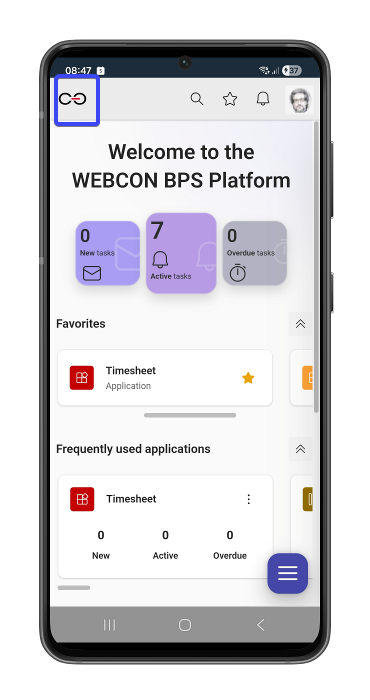
The Home button
The button, located on the left side of the mobile application upper bar, becomes accessible after logging in to Portal. Pressing it redirects you to the Portal Home page, regardless of where you are located within the Portal.
In turn, pressing the system return button, redirects you to the previous Portal page or the login window (if only one page has been displayed). In addition, if a new window has been opened within Portal, pressing this button will close it.
Quick access button
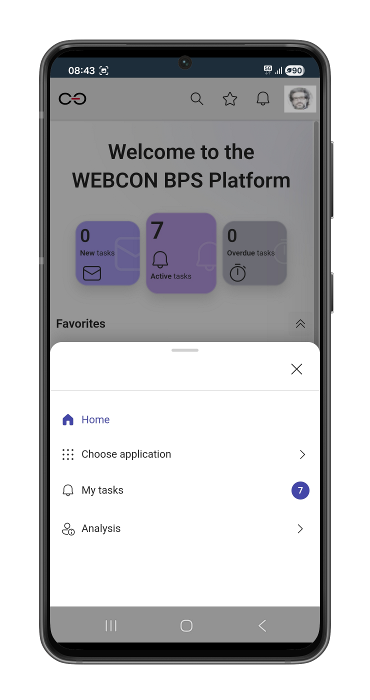
The button is located on the bottom right side of the mobile application, accessible after logging in to Portal. After pressing it, a menu appears containing four options: Home, Choose application,My tasks and Analysis.
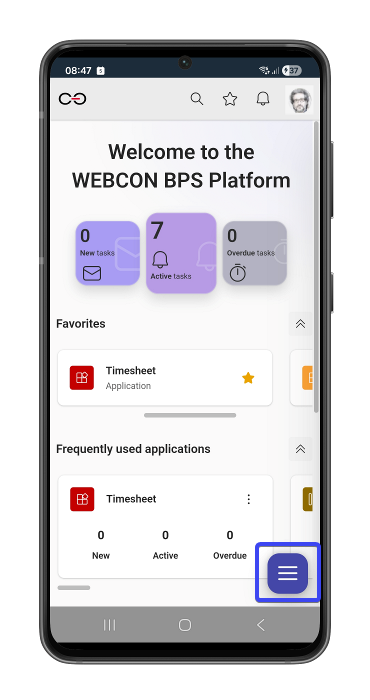
- Home – redirects the user to the Portal home screen
- Choose application – displays a subpage with a complete list of applications available to the user, with the option to search for an application
- My tasks – redirects the user to the Tasks page
- Analysis – provides access to the reports Anomalies and Suggested
Quick operations menu
Pressing and holding the application icon on the mobile device screen opens the so-called quick operations menu. The menu enables quick execution of basic operations within the mobile application.
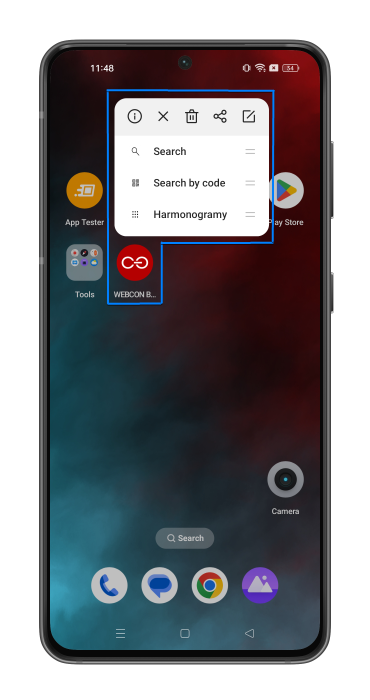
The quick operations menu contains the following options:
- Search – the button redirects you to the search screen in the mobile application. If you are not logged in, you are first redirected to the login page before opening the mentioned window,
- Search by code – opens the QR code scanner within the search window context. After scanning the code, the scanned value is entered into the search box. Similar to the Search button, you may be required to log in.
In addition – depending on the Portal configuration – apart from the two aforementioned fixed elements (Search and Search by code), the menu contains two dynamic extra elements that have been added to favorites in Portal. These elements are retrieved from the Portal page to which you are currently logged in, redirecting you to the respective pages.