Remove attachment
The action used to delete attachments from workflow instances.
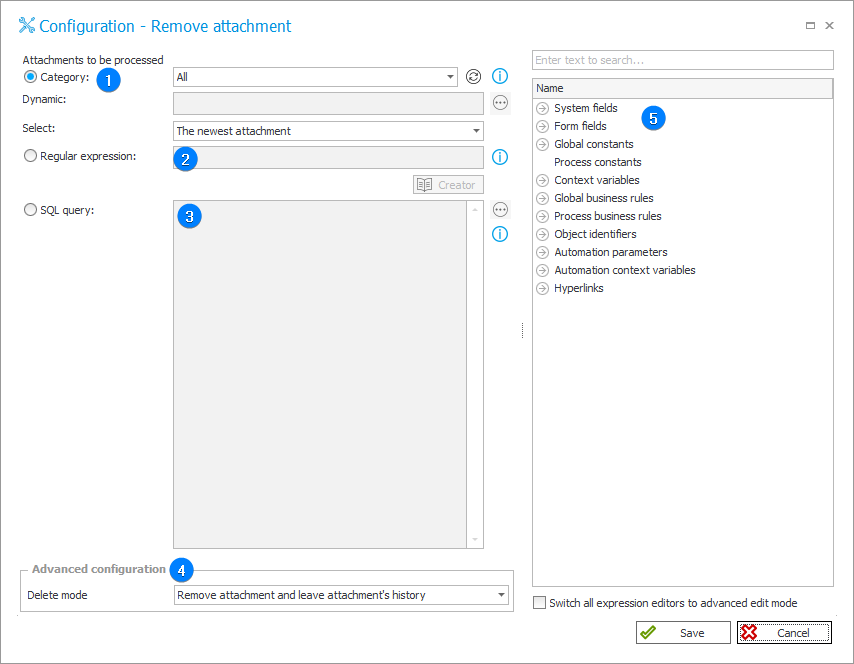
1. Category
Attachments to be processed will be selected based on their category.
Define it by selecting one of the following options:
- All – attachments belonging to all categories will be selected,
- Dynamic – create the category dynamically (using Variables editor) or enter it manually. The category can be provided in BPS format (i.e. ID#Name) or as ID.
- No category – attachments not belonging to any category will be selected.
Additionally, specify which attachments from the chosen category should be selected: All attachments, only The oldest attachment or only The newest attachment.
2. Regular expression
Attachments to be processed will be selected based on a regular expression.
Use the Regex Creator as an aid in constructing the expression.
3. SQL query
Attachments to be processed will be selected based on an SQL query.
This query should return a list of attachment IDs from the "WFDataAttachments" table.
4. Advanced configuration
With the Advanced configuration, you can indicate Deletion mode for attachments of the workflow instance:
- Remove attachment and leave attachment’s history – the attachment is deleted from the workflow instance, but the historical data are retained in the database,
- Remove attachment and all binary data – the attachment is deleted from the workflow instance, and the historical data are also deleted from the database,
- Remove only history of binary data – the attachment remains on the workflow instance, but historical data are deleted from the database.
5. Variables editor
Dynamically generated tree containing all variables that may be used in the current location of Designer Studio. Information on how to use variables in WEBCON BPS, as well as a list of variables can be found here.